+971 50 634 3878 Sharjah, Dubai [email protected]
When Should You Stop Using a Failed Drive?
Every storage drive eventually reaches the end of its functional life, but the shift from a healthy device to total hardware failure is rarely instant. In most cases, storage media provides subtle warning signalsbrief system freezes, isolated file corruption, or faint metallic ticks long before becoming
completely unreadable Lifeguard Data Recovery
The greatest risk lies in how users handle these early warning signs. Continuing to run an operating system, execute heavy read or write tasks, or force automated disk repair utilities on a destabilizing drive can transform a simple logical issue into permanent physical data destruction Lifeguard Data Recovery
Whether managing a high-performance Solid State Drive (SSD) or a traditional mechanical Hard Disk Drive (HDD), knowing When Should You Stop Using a Failed Drive is the single most critical factor in preserving your valuable data.
What Is Hard Drive Failure? (Overview & Context)
To protect your files, it is essential to distinguish between the two primary ways a storage drive can fail: physical failure and logical failure.
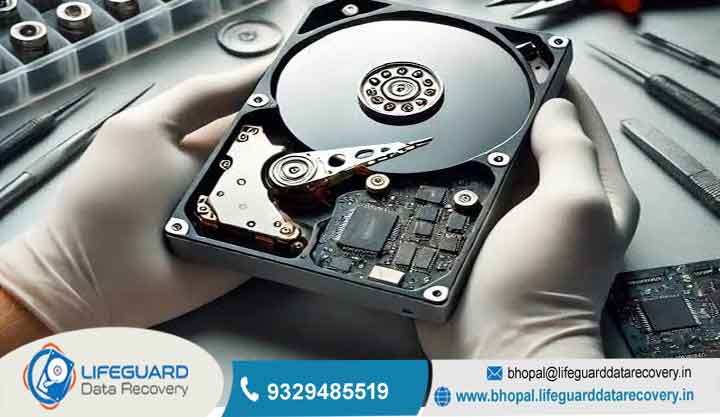
Physical (Hardware) Failure: Occurs when internal physical components break down. On a mechanical failed hard drive, this includes head assembly crashes, spindle bearing seizure, or motor failure. On an SSD, it involves controller burnout or physical PCB damage. Physical damage requires immediate power-down to prevent severe media degradation.
Logical (Software) Failure: Occurs when the physical hardware remains healthy, but the file structure, partition table, or master boot record becomes corrupted. While logical issues are often fixable via software utilities, running software repairs on a drive that is actually suffering from underlying physical decay will accelerate its breakdown.
Underlying Causes Why Storage Drives Fail
Understanding why drives degrade helps identify whether a failing hard drive is suffering from age, environmental stress, or manufacturing limits.
Mechanical Wear and Physical Impact (HDDs)
Traditional mechanical drives rely on high-speed spinning platters (typically) with read/write heads floating a tiny fraction of a micron above the magnetic surface.
Head Crashes: Physical shocks, drops, or power losses during active read/write operations can cause the flying heads to strike the magnetic platter, scraping off the storage layer.
Spindle Bearing Seizure: Over time, mechanical lubricants dry out or degrade, increasing friction until the spindle motor can no longer turn the platters
Bad Sector Clusters: Physical wear on the platter surface causes individual magnetic sectors to lose their ability to reliably retain magnetic charges
Flash Memory Wear and Electrical Stress (SSDs)
A failing SSD operates without moving parts, making its failure mechanisms entirely electronic.
NAND Flash P/E Cycle Exhaustion: Flash memory cells can only endure a finite number of Program/Erase (P/E) cycles. Once these limits are reached, the cells lose their ability to trap electrical charges.
Controller Overheating and Failure: The main processing controller on an SSD manages wear leveling and garbage collection. Extreme heat or electrical power sur ges can burn out the controller, making the entire drive instantly invisible to the system.
Firmware Corruption: Malfunctions in the SSD internal microcode can cause the drive to lock itself into an emergency boot loop or a permanent read-only state.
Key Signs & Symptoms: Identifying a Failing Drive Before It Dies
Recognizing early drive failure symptoms gives you a vital window to secure your files before complete hardware collapse.
Mechanical & Physical Warning Signals
If you are using a traditional HDD, physical failure symptoms are often audible:
Clicking, Grinding, or Scraping: A distinct metallic click frequently called the “Click of Death” occurs when the head assembly cannot find calibration data and slams repeatedly against its physical limiter.
Whining or Motor Struggling: High-pitched whining sounds indicate that spindle bearings are failing or the motor driver circuit is overheating.
Excessive Physical Heat: While storage drives warm up under load, an idle drive that becomes uncomfortably hot to the touch often suffers from an electrical short or severe bearing friction.
Operating System & Software Warning Signs
Both mechanical drives and solid-state drives display software-level warning indicators:
Unreadable Sectors & RAW File Systems: Files that suddenly display “File Corrupted” flags, or partitions converting from NTFS/FAT32/APFS into an unreadable RAW format, signal underlying sector degradation.
Reading S.M.A.R.T. Errors and Monitoring Drive Health
Self-Monitoring, Analysis, and Reporting Technology (S.M.A.R.T.) is an integrated monitoring utility built into modern drives. Assessing your overall drive health requires inspecting raw S.M.A.R.T. attributes using diagnostic utilities such as Crystal DiskInfo (Windows), smar tctl (Linux/macOS), or Drive Dx (macOS).
The Golden Rule: Exactly When to Stop Using Your Drive Immediately
The moment a storage device displays physical symptoms of mechanical or electrical decay, all operations must cease immediately
Step-by-Step Emergency Triage: How to Protect Your Data
If your drive displays performance drops or disk failure warning signs, follow this triage process to maximize data safety.
Immediately Freeze All Write Operations
Stop downloading files, close all running software, pause automatic cloud backups (OneDrive, Google Drive, Dropbox), and prevent pending OS updates. Writing new data to an unstable drive risks overwriting critical system structures or filling up remaining spare sectors.
Prioritize Critical File Backups Over Full System Images
Do not attempt to create a full system image or clone the entire operating system if the drive is destabilizing. Manually copy your most critical personal documents, financial files, and family photos first.
Use Sector-by-Sector Disk Cloning for Unstable Drives
If individual file copying fails or causes system freezes, perform a sector-by-sector clone using raw data imaging tools like in Linux. Cloning creates a bit-level image on a secondary healthy drive, reading sectors sequentially without stressing the unstable drive with constant file system queries. Perform all subsequent data recovery from failed drive attempts using the secondary clone.
Proper Disconnection Procedures
Once priority files are copied or an image is captured, properly eject the device within the operating system before pulling power or data cables. Unmounting cleanly prevents voltage spikes across the drive board.
Fatal Mistakes: What NEVER to Do with a Failing Drive
Panic during data loss often leads to aggressive troubleshooting steps that permanently destroy remaining data
Why Built-In Repair Tools (CHKDSK / First Aid) Can Destroy Data
Built-in utilities like Windows are designed to repair logical file structure issues on healthy hardware not physically degrading drives.
The CHKDSK Trap: forces the drive controller to aggressively stress-read damaged sectors and re-allocate data blocks across the drive. On a physical corrupted hard drive, this stress causes read heads to drag across platters, destroying magnetic media and shredding file structures beyond recovery.
Dangerous DIY Myths: The Freezer Trick and Opening Drive Casing
The Freezer Trick: A legacy myth suggests sealing a failing drive in a bag and placing it in a freezer to shrink internal metal components. Modern drives operate on micro-inch tolerances. Sub-zero temperatures create internal moisture condensation that freezes directly on platter surfaces, causing immediate destruction upon spin-up.
Opening the Drive Case: Storage drives must only be opened inside an ISO Class 5 cleanroom. Opening a drive in a standard room exposes platters to ambient dust particles. To floating read/write heads, a single particle of dust acts like a giant obstacle, causing immediate platter scratching.
The Harm of Repeated Power Cycling
Continually restarting an unstable computer in hopes that the drive will eventually mount causes extreme thermal and mechanical shock. The initial spin-up phase places the highest physical strain on motor bearings and actuator arms.
Do Unused Storage Drives Degrade Over Time?
Storage media does not last forever, even when left completely disconnected in a drawer or safe.
HDD Degradation in Cold Storage (Stiction & Demagnetization)
Mechanical Stiction: Over years of static storage, liquid lubricants inside spindle motor bearings can evaporate or settle, causing the motor to lock up (“stiction”) when powered on again.
Magnetic Bit Rot: Although magnetic platters retain charge for long periods, natural ambient background radiation and environmental magnetic fields cause gradual domain decay over a decade, resulting in unreadable bad sectors.
SSD Degradation in Offline Storage (NAND Charge Leakage)
Solid State Drives are unsuited for long-term offline cold storage.
NAND Charge Leakage: SSDs store data as electrical charges trapped inside floating-gate transistors. Over extended periods without power, these electrical charges leak through the insulating oxide layers.
Temperature Impact: Warm storage environments accelerate charge loss. An unpowered consumer SSD stored in a warm room can experience data degradation within 1 to 3 years.
DIY Recovery vs. Professional Hard Drive Recovery
Knowing when to use software tools versus seeking professional engineering help prevents permanent data loss
Safe Scenarios for Software Recovery
Software recovery tools are safe only if the storage device passes physical inspection: it spins quietly, shows no physical noise, and registers steadily in disk management tools with static, non-expanding bad sectors.
Scenarios Requiring Cleanroom Data Recovery Services
If a drive has suffered physical impact, water exposure, electrical power surges, or exhibits metallic clicking noises, software utilities will only accelerate permanent media damage. Professional recovery laboratories utilize ISO Class 5 cleanroom environments, specialized PC-3000 diagnostics, and head replacement tools to extract raw data safely.
Frequently Asked Questions
Can a failed hard drive be repaired and used again?
No. Once a hard drive suffers a physical mechanical failure or platter damage, it cannot be permanently repaired for daily use. Professional recovery labs only stabilize damaged drives temporarily inside cleanrooms to extract raw data, after which the drive must be retired.
How long can a hard drive continue running with bad sectors?
A drive displaying bad sectors should never be trusted for daily storage. While an isolated bad sector mapped out years ago may remain stable, any drive showing a growing number of pending or reallocated sectors should be backed up and replaced immediately.
What does a clicking hard drive sound like, and what causes it?
A clicking drive produces a rhythmic metallic “click-clack” noise upon powering on. This occurs when the actuator arm’s read/write head assembly cannot locate magnetic calibration tracks on the platter, causing it to hit its physical limiter repeatedly.
Is formatting a failing drive safe if it only failed once?
No. Formatting simply clears file system allocation tables; it does not repair mechanical wear, damaged heads, or degrading flash memory blocks. A drive that has destabilized once will fail again, often much faster.


