+971 50 634 3878 Sharjah, Dubai [email protected]
what causes the hard drive to fail
Hard drive failure is one of the most frustrating experiences in computing. Whether it happens suddenly with an ominous clicking sound or slowly through escalating performance freezes, a failing drive threatens photos, critical documents, and operational data Lifeguard data recovery
Understanding what causes the hard drive to fail allows you to identify early warning signs, troubleshoot root causes, and implement preventive measures to keep your data secure Lifeguard data Recovery
Understanding Hard Drive Architecture How HDDs Work (And Why They Fail)
Unlike Solid State Drives (SSDs) that store data on flash memory chips, a traditional mechanical hard disk drive (HDD) relies on precision electro-mechanical engineering. Inside every standard hard drive, several components work in sync:
Platters: Circular aluminum, glass, or ceramic disks coated with a magnetic layer where binary data is written.
Spindle Motor: Rotates the platters at constant speeds, typically RPM in desktop drives, and up to RPM in enterprise units.
Read/Write Heads: Tiny electromagnetic sensors attached to an actuator arm that float mere nanometers above the spinning platter surfaces.
Printed Circuit Board (PCB): The bottom-mounted electronics board controlling communication between the drive and the motherboard.
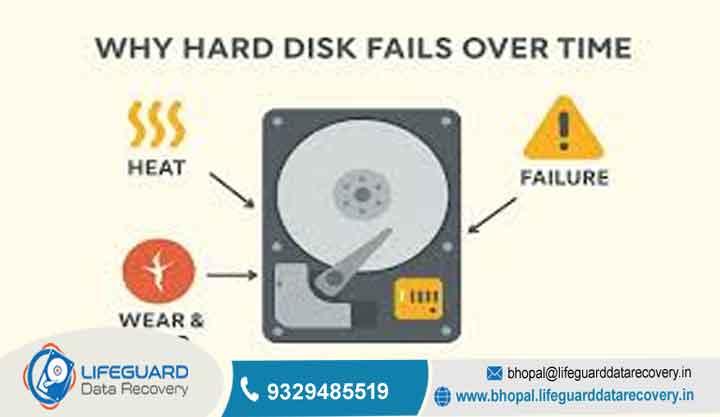
Because HDDs rely on high-speed moving parts operating under strict tolerances, mechanical hard drive failure is an inevitable reality of physical wear and tear. Over a standard hard drive lifespan of three to five years, micro-abrasions, heat expansion, and mechanical fatigue naturally degrade these delicate components.
Common Hard Drive Failure Causes: Hardware & Mechanical
When physical hardware fails, access to your data halts immediately. Identifying what causes hard drive failure on a physical level helps determine whether a drive can be recovered safely.
Read/Write Head Crash and Platter Scratches
A head crash occurs when the read/write slider makes physical contact with the spinning platter. Because the gap between the head and the platter is thinner than a particle of smoke, a sudden shock such as dropping an external hard drive or bumping a desktop unit while running forces the head into the magnetic film. This contact gouges the surface, destroying data and generating microscopic debris that causes further magnetic degradation.
Spindle Motor and Bearing Breakdown
The spindle motor must maintain strict rotational alignment. Over time, the fluid dynamic bearings inside the motor dry out or wear down. Bearings degradation leads to increased friction, rotational instability, or total motor seizure, rendering the drive completely unreadable.
Hard Drive Overheating & Inadequate Airflow
Computers generate significant thermal output, and hard drive overheating is a major contributor to premature drive death. Operating an HDD above causes internal metal components to expand out of tolerance, degrades magnetic media coatings, and accelerates electronic component failure on the drive’s controller board.
Power Surges, Voltage Spikes, and Faulty PSUs
An unstable power supply unit (PSU) or a sudden lightning surge can deliver excessive voltage to the hard drive’s PCB. Power surges often blow out protective diodes (TVS diodes) or melt controller chips, leaving the drive without power or unresponsive to BIOS commands.
Logical and Software-Related Hard Disk Failure Reasons
A drive does not need physical damage to stop functioning. Software-level errors known as logical failures—render data inaccessible even when the internal mechanics remain functional. Exploring these hard disk failure reasons helps separate software corruption from physical destruction.
File System Corruption and Improper Shutdowns
If a system loses power while updating index tables (such as NTFS, FAT32, or APFS file systems), the drive loses track of where files begin and end. Unplugging external drives without safely ejecting them or experiencing sudden blue-screen crashes creates structural integrity faults in the file system table.
Accumulation of Bad Sectors (Physical vs. Logical)
Storage platters are divided into billions of microscopic addressable units called sectors.
Hard Bad Sectors (Physical): Caused by physical platter wear, manufacturing flaws, or micro-dust contact. They cannot be repaired.
Soft Bad Sectors (Logical): Created when the operating system writes data unsuccessfully due to a sudden crash or mismatch in error-correcting code (ECC). Logical bad sectors on hard drive arrays can often be marked and isolated by disk software utilities.
Malware, Firmware Corruption, and OS Errors
Ransomware or low-level bootkit viruses can alter the Master Boot Record (MBR) or GUID Partition Table (GPT), preventing your system from mounting the drive. Additionally, corrupted internal drive firmware (the microcode stored on the controller chip) will cause the drive to report incorrect drive sizes or fail to initialize entirely.
Recognizing Failing Hard Drive Symptoms Before Total Crash
Identifying a failing hard drive symptoms list early is the difference between a simple file transfer and permanent data loss.
Audible Warning Signs: Clicking, Grinding, and Whining Noises
Physical sound is the most definitive indicator of physical failure:
Clicking (“Click of Death”): Indicates the read/write heads are extending, failing to track the system area on the platter, and snapping back to the landing zone repeatedly.
Grinding or Scraping: Indicates direct physical contact between the read/write head and platter, or worn-out spindle motor bearings.
High-Pitched Whining: A sign of a seizing spindle motor trying to turn against excessive friction.
If you hear a clicking hard drive noise, power off the device immediately. Continuous operation sweeps damaged heads across platters, destroying unread data.
Performance Drops: Slow Read/Write Speeds and System Freezes
When an operating system encounters damaged storage blocks, it repeatedly retries reading the data. This causes file transfers to stall, File Explorer or Finder to hang, and boot times to extend from seconds to hours.
File Corruption, Disappearing Data, and Blue Screens (BSOD)
Seeing files fail to open, experiencing corrupted document saves, or encountering system crashes (Blue Screen of Death in Windows or Kernel Panics in macOS) indicates that critical OS files are residing on failing sectors. Unexplained data loss from hard drive storage indicates active platter degradation.
Hard Drive Not Detected or Recognized by BIOS/OS
When an internal or external drive suddenly disappears from Disk Management or Disk Utility, or shows as “Uninitialized” or “RAW,” the controller board or firmware interface has lost communication with the drive’s mechanical assembly. A hard drive not detected status indicates a severe hardware failure or corrupted partition mapping.
How to Diagnose and Troubleshoot Common Hard Drive Failures
Isolating software issues from physical damage prevents unnecessary disk replacements.
Check S.M.A.R.T. Health Status via OS Tools
Hard drives feature Self-Monitoring, Analysis, and Reporting Technology (S.M.A.R.T.) to track internal wear statistics.
Windows: Open Command Prompt and type or use third-party tools like CrystalDiskInfo to read attributes like Reallocated Sectors Count and Current Pending Sector Count.
macOS: Open Terminal and type to verify overall health.
Step 2: Run Built-In Disk Repair Utilities (CHKDSK / First Aid)
If S.M.A.R.T. reads normally but files are dropping, run file system diagnostic tools:
In Windows, run in an elevated command prompt (replace with your drive letter) to fix logical file structures and locate bad sectors.
In macOS, open Disk Utility, select the volume, and click First Aid to verify disk structures.
Caution: Do not run repair utilities if the drive is making physical clicking sounds. Utility read cycles will stress damaged heads and permanently wipe remaining data.
Inspect Physical Connections, Cables, and Enclosures
Rule out false positives by verifying connectivity. Swap out SATA data cables, try different USB ports, check for loose power pin connectors, or test internal drives inside a external USB docking enclosure to rule out port or motherboard failure.
Emergency Steps: What to Do If Your Hard Drive Has Failed
Stop Using the Drive Immediately to Avoid Secondary Damage
If a drive becomes unresponsive or makes strange sounds, disconnect power right away. Leaving a failing drive plugged in causes continuous head sweeps that shred the magnetic recording layer, transforming recoverable files into unrecoverable dust.
Safe Recovery Practices vs. Professional Data Recovery
DIY Recovery Software: Safe only if the failure is purely logical (deleted partition, accidental format, soft bad sectors) and the drive physically spins smoothly without noise. Always clone the drive to an image file first, then run recovery software on the image never on the live failing disk.
Cleanroom Mechanical Recovery: Required if the drive is clicking, not spinning, or physically damaged. Certified engineers must open the drive inside an ISO Class 5 cleanroom to replace damaged read/write head assemblies or transfer platters to donor chassis.
Proactive Tips to Extend Hard Drive Lifespan and Prevent Failure
While every mechanical drive eventually wears out, preventive practices minimize unexpected system crashes
Implement the 3-2-1 Backup Strategy: Maintain 3 copies of your data across 2 different media types, with 1 copy stored securely offsite or in the cloud.
Manage Operating Temperatures and Dust Accumulation: Keep PC cases elevated off carpets, clear air intakes of dust every 6 months using compressed air, and ensure adequate intake fans maintain air circulation over drive bays.
Protect Against Power Instability with Surge Protectors / UPS: Connect desktop hardware to an Uninterruptible Power Supply (UPS). A UPS smooths out voltage spikes, cleans dirty line power, and gives you time to perform a safe shutdown during power outages.
Handle External Drives with Care: Always click “Safely Remove Hardware” or “Eject” before disconnecting USB drives, and never move or jostle an external hard drive while its activity LED indicates it is spinning.
Frequently Asked Questions (FAQs)
What is the average lifespan of a hard drive?
Under normal consumer workloads, an HDD typically lasts between 3 and 5 years. Server-grade enterprise drives operating under controlled environments can last 5 to 7 years, though failure rates increase after Year 3.
Can a corrupted hard drive be fixed without losing data?
If corruption is purely software-based (logical), file system structure repairs or partition recovery software can restore read capability without data loss. If corruption stems from physical platter damage, data must be extracted by specialized recovery tools before the physical drive is permanently decommissioned.
What is the difference between HDD failure and SSD failure?
HDDs fail mostly due to mechanical wear (heads, motors, platters), providing audible or performance warning signs beforehand. SSDs have no moving parts and fail electronically (flash cell wear-out, controller failure), often dying abruptly without warning noise or speed drops.
Why is my hard drive making a clicking noise?
A clicking sound indicates that the actuator arm cannot find track locations or read system file zones. It keeps bouncing back to its resting position to reset itself. This usually stems from a damaged read/write head assembly or severe platter degradation.


