+971 50 634 3878 Sharjah, Dubai [email protected]
what causes hard drive failure
Hard drives are the digital vaults of our personal and professional lives. Whether storing critical enterprise databases, family photos, or OS system files, a sudden hard drive crash can cause immediate panic. Lifeguard data recovery
While modern storage media has become increasingly resilient, all hard drives eventually fail. Understanding what causes hard drive failure, recognizing the warning signs early, and knowing how to respond can mean the difference between seamless data recovery and permanent loss.
In this guide, we break down the root causes of hard disk failures, compare HDD vs. SSD failure modes, identify warning symptoms, and walk through safe recovery steps Lifeguard Data Recovery
Understanding Mechanical Hard Drives vs. Solid-State Drives (HDDs vs. SSDs)
To understand why hard drives fail, it helps to distinguish between traditional Hard Disk Drives (HDDs) and Solid-State Drives (SSDs). While consumers often use “hard drive” as a catch-all term for computer storage, their physical architecture is fundamentally different.
Because HDDs rely on high-speed spinning parts, mechanical hard drive failure is far more common than physical breakdown in SSDs. However, SSDs remain vulnerable to electrical issues and flash memory degradation over time.
Common Causes of Hard Drive Failure
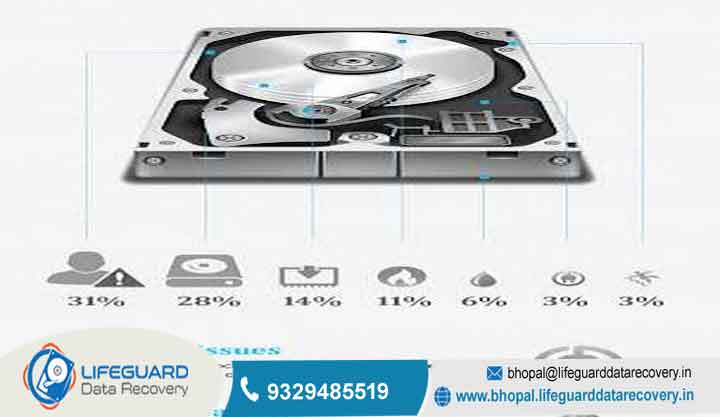
When asking what causes hard drive failure, the answers fall into five distinct categories: physical damage, heat stress, electrical issues, logical corruption, and natural component degradation.
1. Physical & Mechanical Damage
The most frequent reasons for hard drive failure in HDDs stem from mechanical breakdown:
Head Crashes: An HDD’s read/write head floats mere nanometers above the spinning platter. If the drive experiences a physical bump or drop while operating, the head can collide with the platter surface, permanently gouging the magnetic coating.
Spindle Motor Failure: The motor that spins the drive platters at RPM can seize due to bearing wear or thermal expansion.
Actuator Arm Sticking: The arm controlling the read/write head can get stuck in place, preventing the computer from accessing stored sectors.
2. Thermal Stress & Overheating
Excessive heat is a quiet killer of storage media. Poor computer ventilation, dust accumulation, or clogged cooling fans elevate internal temperatures:
Heat causes metal platters and internal arms to expand micro-fracturally.
High temperatures degrade spindle motor lubricants, accelerating mechanical friction.
Extended thermal stress degrades the solder joints and microchips on the drive controller board.
3. Electrical Damage & Power Surges
Electrical anomalies are primary hard drive crash causes for both HDDs and SSDs:
Power Surges: A sudden voltage spike from lightning strikes or faulty power supply units (PSUs) can instantly burn out the Printed Circuit Board (PCB).
Sudden Power Outages: Unplanned power loss during an active data write cycle can cause head misalignments in HDDs or corrupt the translation table in SSDs, leaving the drive unreadable.
4. Logical Issues & File System Corruption
Not all drive failures are hardware-based. Logical failures occur when the drive’s software structure breaks down:
Corrupted Master Boot Record (MBR) or Partition Table: Prevents the operating system from locating files.
Improper Shutdowns: Forcing a PC off while files are actively writing can create corrupted bad sectors.
Malware & Ransomware: Rogue software can overwrite critical system sectors, locking out drive access.
5. Natural Wear and Tear (Lifespan Limitations)
No storage device lasts forever. The average hard drive lifespan for a mechanical disk is 3 to 5 years under normal operating conditions. Over time:
Magnetic charges on platters gradually weaken.
SSD NAND flash cells wear out after reaching their write limit (measured in Terabytes Written or TBW).
Mechanical tolerances degrade, leading to accumulated bad sectors.
Key Symptoms of a Failing Hard Drive
Recognizing symptoms of a failing hard drive early gives you the best chance to back up critical data before complete breakdown.
Warning: If your drive makes unusual mechanical noises, stop using it immediately. Continuing to power on a clicking drive can cause permanent platter damage and irreversible data loss from hard drive failure.
Physical & Auditory Warning Signs
The “Click of Death”: A repetitive clicking or clacking sound caused by the read/write head repeatedly trying and failing to calibrate.
Grinding or Screeching Noises: Indicates worn-out spindle motor bearings or the read/write head actively scratching the platter.
Excessive Heat Output: The drive enclosure feels abnormally hot to the touch during light usage.
System Performance & Software Symptoms
Severe Slowdowns: Windows File Explorer or macOS Finder freezes when opening folders or moving files.
Frequent File Corruption: Files suddenly fail to open, show altered contents, or vanish entirely.
Blue Screen of Death (BSOD): System crashes occurring during boot or heavy file transfer operations.
Hardware Diagnostics & OS Errors
“Hard Drive Not Detected” Error: The system BIOS/UEFI or operating system fails to recognize the drive on boot.
S.M.A.R.T. Warning Prompts: Operating system alerts indicating Self-Monitoring, Analysis, and Reporting Technology (S.M.A.R.T.) thresholds have been exceeded.
What to Do When Your Hard Drive Fails (Step-by-Step Response)
If you suspect your storage device is experiencing hard disk damage, follow this sequence to protect your data.
Power Down Immediately: If you hear clicking, grinding, or observe sudden drive drops, shut down the system. Continuing to run a mechanically damaged drive causes the read/write head to scrape away magnetic media containing your files.
Check Cables and Port Connections: Disconnect the drive and reattach it using a different SATA or USB cable. Test the drive on another computer port to verify that the issue isn’t a faulty cable or motherboard connector.
Check S.M.A.R.T. Health Status Safely: If the drive still boots, use lightweight diagnostic tools (such as CrystalDiskInfo for Windows or Smartmontools for macOS/Linux) to review S.M.A.R.T. health logs. Look for reallocated sector counts and uncorrectable sector errors.
Avoid Aggressive Automated Repair Tools: Do not run intensive utilities like or disk defragmentation software on a physically failing drive. These processes force heavy read/write operations that can stress weak hardware into complete failure.
Consult Professional Data Recovery Services: If the drive is unreadable, making grinding noises, or completely unresponsive, software recovery attempts will fail. Professional cleanroom environment recovery is required to replace damaged components and clone platter data safely.
Best Practices to Prevent Hard Drive Failure
While drive failure is inevitable over long horizons, these maintenance practices maximize device longevity:
Maintain Adequate Airflow: Keep computer vents clear of dust and ensure internal fans are operational.
Use Quality Power Protection: Connect desktop PCs and external drives to an Uninterruptible Power Supply (UPS) with built-in surge protection.
Avoid Sudden Physical Movement: Never bump, tilt, or relocate a laptop or external HDD while the disk is actively spinning.
Monitor S.M.A.R.T. Status Proactively: Schedule monthly drive health checks to catch degrading sectors before catastrophic failure.
Practice the 3-2-1 Backup Strategy: Keep 3 total copies of important data across 2 different storage types (e.g., local drive + external HDD), with 1 copy stored securely offsite or in cloud storage.
Frequently Asked Questions
How long do hard drives typically last?
Traditional mechanical hard drives (HDDs) typically last 3 to 5 years, while Solid-State Drives (SSDs) generally last 5 to 10 years. An SSD’s lifespan is primarily determined by its Terabytes Written (TBW) rating and daily write volumes.
Can a dead hard drive be repaired and reused?
While professional engineers can temporarily repair a failed drive in a certified cleanroom to extract your files, a mechanically failed drive should never be reused for daily storage. Once internal components experience structural breakdown, failure will recur.
Why is my hard drive not detected all of a sudden?
A hard drive not detected error can stem from loose cables, corrupted file systems, fried Printed Circuit Boards (PCBs) due to power surges, or dead controller chips on SSDs.
Is SSD failure different from HDD failure?
Yes. HDDs usually give auditory and performance warnings (clicking, file slowdowns) before dying. SSDs often fail suddenly and silently without sound, usually due to power spikes or controller chip faults.


