+971 50 634 3878 Sharjah, Dubai [email protected]

SD card data recovery
Encountering an unreadable SD card can bring your workflow or memories to a sudden halt. Whether your digital camera displays a “Card Error” message, your Android phone notifies you that an SD card is damaged, or your computer asks you to format the disk before using it, the core question remains: SD cards be repaired?
Yes, corrupted SD cards can often be repaired, but success depends entirely on whether the damage is logical or physical.
If the corruption is software-based (a corrupted file system, broken directory index, or bad sectors), you can fix the SD card and recover your data at home. However, if the card has suffered physical damage, controller failure, or extreme hardware degradation, software solutions will not work, and attempting DIY fixes can permanently erase your files Lifeguard Data Recovery
Crucial Rule: Always extract your lost files using read-only data recovery tools before running invasive operating system repair commands or formatting the card lifeguard Data Recovery
Causes of SD Card Corruption
Understanding why an SD card fails helps prevent repeat incidents and determines the best repair path.
Logical Causes (File System Errors, Sudden Ejection, Malware)
Logical corruption occurs when the software layout (the file system structure, such as FAT32, or NTFS) gets disrupted while the physical memory chips remain completely functional.
Unsafe Removal: Removing the card from a camera, phone, or card reader while files are actively being transferred breaks write operations and corrupts the Master Boot Record (MBR) or File Allocation Table (FAT)
Sudden Power Loss: A camera dying mid-recording or a computer shutting down during a file transfer leaves open, unwritten data headers
Cross-Device Formatting Conflicts: Moving an SD card between different operating systems (e.g., from a digital camera to an Android phone, then to a Mac) without reformatting can cause file structure conflicts.
Physical & Hardware Causes (Worn-out NAND, Dirty Pins, Environmental Damage)
NAND Flash Wear-Out: MicroSD and SD cards use flash memory. Every memory cell has a limited number of Program/Erase (P/E) cycles. Over time, heavy use causes memory sectors to wear out permanently.
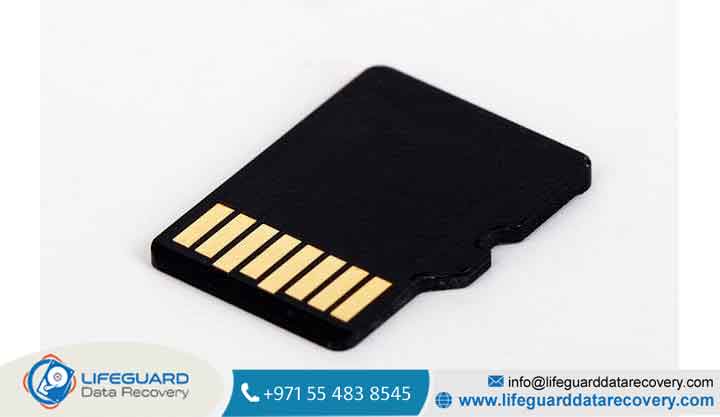
Oxidized or Contaminated Contacts: Sweat, oils, dirt, or moisture on the exposed gold metal pins can block electrical communication between the card reader and the storage controller.
Controller Failure: The integrated microcontroller inside the card manages wear-leveling and data addressing. If this tiny processor fails electronically, the storage device will stop responding entirely.
Fake or Counterfeit SD Cards
Purchasing cheap SD cards from unverified online sellers carries high risk. Counterfeit cards often hack the micro-controller firmware to display a fake capacity showing 512 GB on a physical 32 GB chip). Once you store data beyond the actual physical memory limit, the card silently overwrites its own index tables, rendering all subsequent files unreadable.
Symptoms of a Damaged or Corrupted SD Card
Recognizing corruption early prevents irreversible data loss. If you notice any of these signs, refrain from writing new data to the card immediately.
“SD Card Is Damaged” / “Access Denied” Pop-ups: The host device recognizes the card hardware but cannot read the underlying volume partitions.
SD Card Shows RAW File System or 0 Bytes: The operating system cannot detect an exFAT or FAT32 structure. Windows will prompt: “You need to format the disk in drive X: before you can use it.”
Files Missing, Invisible, or Showing Read-Only Errors: Photos or videos inexplicably disappear, display half-greyed-out previews, or refuse to delete.
SD Card Not Reading or Not Detected by Computer/Camera: Inserting the card results in complete silence no drive letter appears in File Explorer or Disk Management.
Extreme Read/Write Slowness: The host device freezes or hangs indefinitely when attempting to read simple directory files.
Write-Protection Errors: You are unable to add, modify, or format files on the memory card, even if the physical write-protect lock switch on the adapter is disengaged.
Strange File Names: File names alter into invalid control characters (e.g., gibberish code, symbols, or incorrect file sizes) due to index damage.
The Golden Rule: Recover Data BEFORE You Attempt Repair
The biggest mistake users make when dealing with a corrupted SD card is running repair utilities like Windows or clicking “Format” right away.
Why CHKDSK Can Erase Files: Commands like force the operating system to modify bad sectors, fix cross-linked files, and trim corrupted metadata. If the index is severely damaged, may convert your photos and videos into generic fragments, destroying recoverability.
Why Formatting Destroys Traces: Formatting wipes the root file index. While data payload remains in the NAND cells until overwritten, applying a new file system creates extra steps for recovery software.
Rule of Thumb: Extract your critical files first using safe, read-only data recovery tools. Once your files are backed up safely, proceed with repairing the corrupted card.
Create a Byte-to-Byte Disk Image (Best Practice)
If an SD card has bad sectors or failing memory cells, repeatedly scanning it with software causes physical wear and accelerates card failure. Creating a byte-level copy clones the exact physical state of the card into a single image file on your computer’s local hard drive
How to Fix a Corrupted SD Card ( Proven Solutions)
Once you have secured your recoverable files, use these troubleshooting steps (ordered from lowest risk to most invasive) to restore your SD card to working order.
Basic Hardware Checks (Clean Contacts & Switch Card Readers)
Clean the Pins: Isopropyl alcohol (99%) applied lightly to a microfiber cloth can clear grease or oxidation from the gold contact strips.
Bypass USB Hubs: Plug your SD card reader directly into a motherboard port on your computer rather than through unpowered external USB hubs.
Try Another Reader/Device: An outdated or faulty SD card adapter can mimic card corruption. Check if the card reads correctly on a secondary computer, camera, or phone.
MicroSD Cracks: MicroSD cards store data directly on a micro-thin silicon die. If the plastic housing cracks, the internal silicon trace breaks permanently.
Dead Controller (No Media / 0 Bytes): If Disk Management detects the card reader as empty (“No Media”), the host system cannot communicate with the NAND memory chip.
Short Circuit / Thermal Hotspots: If the card gets hot within seconds of insertion, an internal electrical short is present. Disconnect power immediately to avoid melting internal traces.
What to Expect from a Professional SD Card Recovery Service
If your files are critical and software fixes fail, an SD card recovery service uses specialized equipment to recover data:
Micro-soldering & Trace Repair: Technicians scrape off protective coating layers under high-power microscopes to solder microscopic wire leads directly to hidden PCB trace pads.
Chip-Off NAND Recovery: For standard full-sized SD cards, technicians desolder the NAND flash memory chip from the circuit board, mount it into a hardware programmer, and read the raw memory cells directly.
Monolithic Pinout Extraction: Monolithic microSD cards integrate the controller and flash memory into a solid plastic chip. Recovery labs use custom pinout diagrams, micro-probing rigs, and X-ray analysis to extract raw dumps without functional controllers.
Proactive Tips to Prevent SD Card Corruption
Implementing basic card maintenance habits reduces the chance of experiencing data loss in the future.
Always Safely Eject Hardware: Never pull an SD card out while your computer, camera, or phone is active. Select Safely Remove Hardware / Eject on your OS before pulling the physical card out.
Use High-End, Authentic Storage: Invest in high-end cards (such as SanDisk Extreme, ProGrade, or Sony Tough series) that use wear-resistant V-NAND architecture, water protection, and shock resistance.
Keep 10 15% Free Space Available: Flash memory controllers require empty sectors for wear-leveling algorithms. Completely filling an SD card accelerates sector exhaustion and file system crashes.
Format Cards in the Destination Camera: Avoid switching an active memory card across multiple camera brands without reformatting it first. Always format the card inside the specific camera you plan to shoot with.
Implement the 3-2-1 Data Backup Strategy: Never rely on an SD card for primary file storage. Maintain 3 copies of critical files, on 2 distinct media types (e.g., local hard drive + SD card), with 1 offsite backup (e.g., secure cloud storage).
Frequently Asked Questions (PAA)
Does formatting an SD card clean corruption?
Yes, formatting wipes the existing directory index and rebuilds a fresh file system (such as FAT32 or exFAT) across the storage sectors. However, formatting also makes previously stored data harder to retrieve, so extract your files using recovery software first.
Can I repair a corrupted SD card without losing data?
Yes, non-destructive fixes such as assigning a new drive letter, updating device drivers, cleaning hardware contact pins, or using read-only data recovery software allow you to access and fix files without modifying original storage sectors.
How much does professional SD card data recovery cost?
DIY recovery software ranges from free (open-source tools like PhotoRec/TestDisk) or commercial licenses. If physical damage or controller failure requires cleanroom micro-soldering, professional laboratory recovery costs typically range from $300 to $1,500 depending on the complexity of the internal architecture.


