+971 50 634 3878 Sharjah, Dubai [email protected]
recover data from a failed hard drive
Few experiences match the sudden wave of panic when a hard drive containing irreplaceable photos, financial records, or business files stops responding. Whether your drive is emitting a rhythmic clicking sound, showing up as an unreadable RAW partition, or refusing to boot your operating system, losing
access to critical data requires a calm, methodical recover data from a failed hard drive approach This comprehensive guide walks you through diagnosing drive failures, applying safe step-by-step DIY recovery methods, knowing when to consult a professional cleanroom laboratory, and preventing future data loss. Lifeguard data recovery
Understanding Hard Drive Failure: Logical vs. Physical Damage
Before attempting any recovery steps, you must identify the type of failure affecting your drive. Treating a mechanical issue with DIY software methods is one of the leading causes of permanent, unrecoverable data loss Lifeguard Data Recovery
Logical Failure (Corrupted Filesystems & File Loss)
A logical failure occurs when the mechanical and electronic components of the drive are functioning properly, but the file system structure or partition data becomes corrupted.
Common causes: Sudden power outages during write cycles, improper drive ejection, malware infection, or OS crashes.
Characteristics: The drive spins smoothly without unusual sounds, but files disappear, partitions display as “RAW,” or Windows prompts you to format the disk before use.
Recovery viability: High. Logical issues can often be addressed using specialized data recovery software or native command-line utilities.
Physical & Mechanical Failure (Component Failure)
A physical failure means one or more hardware components inside or on the drive have suffered structural or electronic damage.
Common causes: Physical drops, liquid exposure, power surges, thermal expansion, and natural wear-and-tear of read/write heads over time.
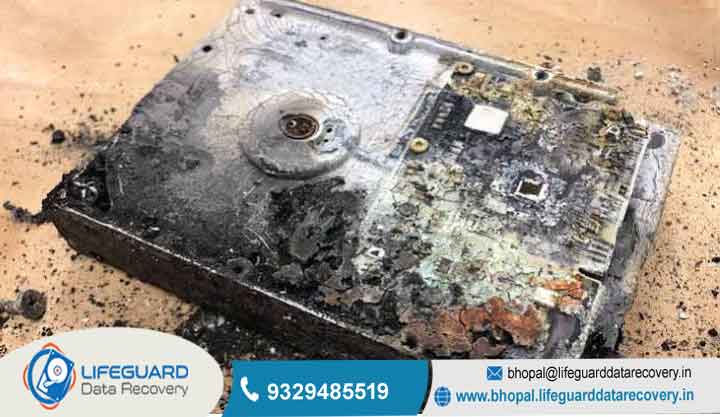
Characteristics: Clicking, grinding, or scraping sounds (the “click of death”), a completely silent drive that fails to spin up, or an electronic burning smell from the Printed Circuit Board (PCB).
Recovery viability: Low for DIY; High for Cleanroom Labs. Physical damage cannot be fixed using software. Attempting to run software scans on a physically damaged drive will scrape magnetic platters and permanently destroy data.
Critical Safety Rule: Stop Using the Drive Immediately
If you suspect drive degradation, power down the drive immediately. Modern operating systems constantly read and write background system logs, temporary files, and page files to connected drives. Every second a failing drive remains powered on, degraded read/write heads can contact spinning magnetic platters, carving permanent grooves into the data layers.
Common Symptoms of a Crashed or Damaged Hard Drive
Early detection is key to successful crashed hard drive recovery. Hard drives rarely fail without warning; recognizing these physical and system flags allows you to take action before complete failure.
Physical Warning Signs
Clicking or Ticking Noises: Indicates the read/write head assembly is sweeping across the platters, failing to locate system tracks, and resetting to its home position repeatedly.
Grinding or Whining Sounds: Points to bearing degradation within the spindle motor or active friction between mechanical components.
Silent Drive / No Spin-Up: Signals a dead PCB, blown TVS diode from a power surge, or a seized spindle motor preventing rotation.
System & Software Symptoms
“Drive Not Accessible” or RAW File System: Windows recognizes the hardware connection but cannot read the Master Boot Record (MBR) or GUID Partition Table (GPT).
Extreme System Latency: File Explorer freezes or crashes whenever you attempt to open folders or copy files from the drive.
Cyclic Redundancy Check (CRC) Errors: Appears when the operating system attempts to read data from deteriorating physical sectors and fails validation checks.
Reading S.M.A.R.T. Attributes to Confirm Health
Self-Monitoring, Analysis, and Reporting Technology (S.M.A.R.T.) is an integrated monitoring system built into modern hard drives. You can view S.M.A.R.T. health logs using third-party tools (such as CrystalDiskInfo or Smartmontools) to inspect specific flags:
Best Hard Drive Data Recovery Methods (Step-by-Step DIY Fixes)
If you have confirmed that your drive is suffering from logical corruption and is physically stable (spinning smoothly without abnormal noises), follow these sequential methods to recover files from a corrupted hard drive.
Basic Hardware Checks & Cable Swaps
Before assuming the drive itself has failed, rule out faulty interface cables or system ports:
Replace Cables: Swap out the SATA data cable and power cable for internal drives, or test a new USB cable for external drives.
Change Ports: Connect internal drives to a different SATA port directly on the motherboard. For external drives, use rear USB ports directly attached to the motherboard rather than front panel hubs.
Test on Another System: Connect the drive to a second computer to rule out operating system driver conflicts or motherboard controller failure.
Recovering Data from a Non-Booting Hard Drive
When the failing drive contains your primary operating system, attempting to boot the computer directly from that drive increases risk and often results in boot loops or Blue Screen of Death (BSOD) errors.
Creating a Byte-for-Byte Disk Image (Crucial Safety Step)
Never run active data recovery scans directly on a failing physical drive. Recovery software subjects the drive to intense, continuous read operations that can cause an unstable drive to crash mid-process. Always image the drive first.
Connect a healthy secondary storage drive with capacity equal to or greater than the failing drive.
Use raw-disk cloning utilities such as (Linux command line) or GUI tools like FTK Imager.
Pass parameters that instruct the tool to skip bad sectors on the first pass and return to attempt retries later.
Once the image file is generated, safely disconnect the physical failing drive and perform all subsequent recovery scans on the image file.
Running Data Recovery Software on Corrupted Drives
With a byte-for-byte clone secured, you can safely apply HDD data recovery software (such as TestDisk, DMDE, or R-Studio) to scan the image file:
Launch your chosen recovery software and select the disk image file as the target source.
Perform a Deep Scan or Raw File Recovery (Carving) to scan sector-by-sector for file signatures (JPEG, PDF, DOCX, ZIP) independent of the corrupted file allocation table.Preview discovered files within the software interface to verify structural integrity.
Export and save the recovered files to a completely separate, healthy storage device (never save back to the original drive).
Command Line Repairs (When to Use CHKDSK Safely)
The Windows Check Disk tool can repair file system structural errors, bad sector allocation tables, and directory index corruption.
Warning: Only run if you have already created a full backup/image of the drive, and you are certain the drive is physically sound. aggressively reallocates bad sectors and truncates damaged indexes, which can permanently delete raw files if run on an unstable drive.
Fixing Damaged USB Connectors & Enclosure PCBA
External hard drives consist of a standard internal 2.5-inch or 3.5-inch SATA drive connected to a bridge board that translates SATA signals to USB. If an external drive fails to turn on or connects intermittently:
Bypass the Bridge (Enclosure Shucking): Carefully open the plastic external casing, disconnect the drive from the internal USB-to-SATA bridge board, and connect the drive directly to a desktop computer’s internal SATA motherboard ports or a trusted standalone SATA dock.
Note on Proprietary USB PCBA: Some modern portable drives (particularly select Western Digital models) feature USB ports soldered directly onto the drive’s main PCB, preventing standard enclosure shucking without specialist board conversion.
When DIY Fails Choosing a Professional Hard Drive Recovery Service
When hard drives experience mechanical failure, physical head strikes, or electrical burnouts, software methods are ineffective. In these scenarios, safe recovery requires specialized hardware tools and cleanroom environments.
The Professional Recovery Process
Diagnostic Evaluation in Lab: Determines component failures and precise service costs.
ISO 5 Class 100 Cleanroom Work: Drive is opened safely and donor parts are harvested.
Mechanical Repair / Head Swap: Actuator assembly and magnetic platters are adjusted or replaced.
Hardware-Level Raw Disk Clone: Extracted using specialized hardware workstations (such as PC-3000).
Verification & Secure Data Return: Files are verified and returned on an encrypted external drive.
When Software Tools Can Cause Permanent Data Loss
Continuing to power on a drive that exhibits physical failure symptoms causes irreversible damage:
Head Crashes: Microscopic read/write heads float mere nanometers above magnetic platters spinning at up to 7,200 RPM. When heads misalign or collapse, they physically drag across the platter, scraping away the magnetic media layer where data resides.
Firmware Corruption: Repeatedly power-cycling a drive with bad sectors can cause the drive’s internal Service Area (SA) firmware logs to overflow, locking the drive controller permanently.
What Happens in a Cleanroom Hard Disk Recovery Lab?
When you send a drive to a professional hard drive recovery service, specialized engineers perform delicate physical hardware operations:
Cleanroom Environment: Drives are opened exclusively inside ISO 5 cleanrooms or laminar flow benches. These environments filter ambient air down to fewer than 100 dust particles per cubic foot, preventing dust grains from settling on open magnetic platters.
Mechanical Rebuilds & Head Swaps: Technicians locate an identical matching donor drive (same model, firmware version, and PCB revision), harvest functioning read/write head assemblies inside the cleanroom, and transplant them into the failed drive casing.
Hardware Imaging Workstations: The rebuilt drive is connected to specialized hardware controllers (such as the PC-3000 suite) that bypass the drive’s native firmware. These systems read data at low physical levels, regulating power voltage and reading unstable sectors safely.
How to Evaluate a Professional Recovery Provider
When selecting a lab service, look for these operational standards:
” Policy: Legitimate providers perform diagnostic evaluations and charge full service fees only if they successfully recover your target files.
Transparent Pricing: Avoid labs that quote vague flat rates over the phone. Real estimates require physical diagnostics to assess required parts, labor, and cleanroom time.
Security & Compliance: Ensure the facility maintains audited security standards (SOC 2 Type II, ISO certifications) to protect confidential personal or corporate records.
Myths to Avoid During Hard Drive Recovery After a Crash
Desperate situations often lead users to internet myths that can permanently damage recoverable drives.
The Freezer Trick
The Claim: Placing a failing hard drive in a sealed bag in the freezer cools contracted metal components, allowing head alignment to temporarily reset long enough to copy files.
The Reality: Freezing a drive creates immediate condensation inside the drive casing once brought back to room temperature. Moisture shorts out electronic board components and traps water droplets on the magnetic platters, leading to immediate head crashes upon spin-up.
Opening the Drive Case at Home
The Claim: Opening the drive top cover to manually unstick a stuck read/write head or spin a jammed platter can fix mechanical issues.
The Reality: Ambient room air contains millions of microscopic dust particles, skin cells, and oil droplets. A single dust particle landed on an open drive platter acts like a boulder when collision occurs with read/write heads floating nanometers above the surface, destroying sectors instantly.
Swapping PCBs Without Transferring ROM Chips
The Claim: Buying an identical donor hard drive and swapping its green circuit board (PCB) onto the broken drive will fix electrical power issues.
The Reality: Modern hard drives store unique calibration data (adaptive parameters) inside a designated ROM microchip on the original PCB. Simply swapping boards without desoldering and transferring the original ROM chip to the target PCB will cause the drive to fail to calibrate, potentially corrupting firmware data.
Proactive Tips to Prevent Data Loss from Hard Drive Failure
Preventing data loss requires moving from reactive recovery strategies to proactive hardware management and redundant backups.
Automated Disk Health Monitoring
Don’t wait for your hard drive to click before checking its operational status. Set up proactive health monitoring tools:
Drive Health Utilities: Run utilities like Hard Disk Sentinel or CrystalDiskInfo in the background to automatically trigger warning alerts when S.M.A.R.T. temperatures spike or reallocated sector counts change.
System Diagnostics: Windows users can run periodic automated drive scans via Command Prompt using to poll basic hardware status across all connected devices.
Frequently Asked Questions (FAQs)
How to recover data from a failed hard drive for free?
You can attempt free data recovery using open-source utilities like TestDisk (for rebuilding lost partition tables) and PhotoRec (for raw file carving). Additionally, native operating system utilities like Windows File History or System Image Restores can restore files if backups were configured prior to the drive failure. Free approaches are only safe for purely logical corruption on physically functional drives.
Can you recover deleted files from a hard drive after it fails?
Yes. When files are deleted or a drive partition corrupts, the operating system simply marks those storage sectors as “available” for future writing rather than immediately zeroing out the underlying binary data. As long as the drive has not undergone low-level zero-formatting, trim commands (primarily SSDs), or active file overwrites, recovery tools can scan raw sector signatures to reconstruct deleted files.
How much does a professional hard drive recovery service cost?
Professional laboratory recovery costs vary based on the underlying failure type:
Logical Corruption (No Cleanroom) average.
Electrical / PCB Repairs average.
Mechanical Head Crash / Cleanroom Repair depending on drive capacity, micro-component replacement difficulty, and turnaround urgency.
Is it possible to recover files from a corrupted hard drive that won’t show up in Windows?
Yes. If a drive does not appear in File Explorer, open Disk Management (diskmgmt.msc) or Device Manager. If the physical disk is detected at the system bus level (even if unallocated or without a drive letter), data recovery software, Linux live environments, or specialized hardware imaging devices can access the raw disk sectors to recover files.


