+971 50 634 3878 Sharjah, Dubai [email protected]
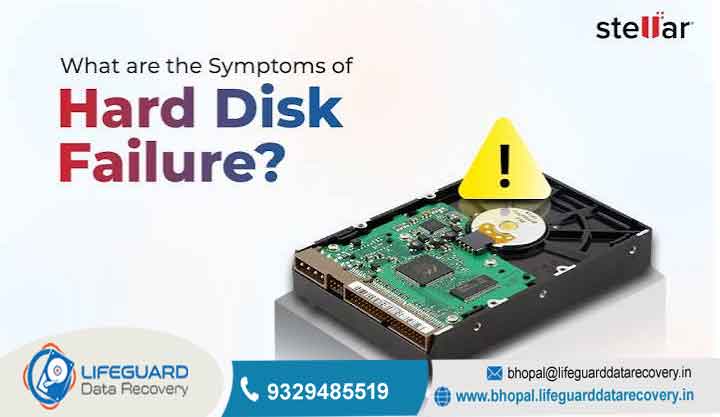
hard drive failure signs
Few experiences trigger as much instant panic as a computer that suddenly freezes, produces strange clicking sounds, or refuses to boot into Windows or macOS. Whether you use a computer for personal memories, professional projects, or business operations, your storage drive is the single point of failure
for all your data Recognizing early hard drive failure signs can mean the difference between spending ten minutes copying your files to an external backup and losing years of critical documents, photos, and databases permanently This comprehensive guide breaks down the early warning signs of a
dying hard drive, explains the crucial differences between HDD and SSD degradation, and provides a safe, step-by-step emergency action plan to extract your files before your drive fails completely Lifeguard Data Recovery
How Hard Drives Fail Physical, Logical, and Firmware Issues
To recognize a lifeguard data recovery before it dies completely, it helps to understand what is actually happening beneath the hood. Storage drives generally fail in one of three ways:
Mechanical (Physical) Failure
Traditional Hard Disk Drives (HDDs) rely on precision mechanics: magnetic platters spinning at up to RPM while read/write heads float just nanometers above the surface on a microscopic cushion of air. A drop, manufacturing defect, or general mechanical wear can cause the head to contact the platter (a head crash) or cause the spindle motor bearings to seize. Mechanical hard drive failure is irreversible through software and requires hardware cleanroom intervention.
Logical (File System) Failure
Logical failures occur when the physical structure of the drive remains intact, but the data stored on it becomes corrupted. This can stem from improper shutdowns, malware infections, or interrupted system updates that damage master boot records (MBR/GPT), file allocation tables, or indexing structures.
Electronic & Firmware Failure
The Printed Circuit Board (PCB) attached to the bottom of your drive manages power delivery and houses controller microcode. Power surges, power supply failures, or thermal stress can cause a hard drive PCB failure, frying onboard capacitors or microcode memory. When this occurs, the drive loses communication with your computer’s motherboard entirely.
Physical & Auditory Signs of Hard Drive Failure
Physical and auditory signs are the most severe warnings you can receive. If you observe any of the symptoms below, your drive is facing imminent hardware breakdown.
1. Grinding or Buzzing Sounds
A healthy HDD produces a low, gentle hum while spinning and subtle tapping noises during heavy read/write activity. Sharp metallic grinding or high-pitched buzzing sounds mean internal components are friction-locked or scraping together.
2. The “Click of Death”
If you hear a persistent, rhythmic clicking sound from your hard drive, power down your machine immediately. This occurs when the read/write actuator arm attempts to read data, fails, bounces off its limit stop, and resets repeatedly. It indicates severe head alignment loss or damaged platter surfaces.
3. Drive Overheating
While storage components generate moderate heat under heavy workloads, a drive casing that becomes too hot to comfortably touch points to excessive motor friction or short-circuiting power components on the PCB.
4. Unusual Vibration
When spindle motor bearings fail or internal flywheels warp out of balance, the drive enclosure will vibrate intensely inside your desktop case or laptop shell.
Performance & System Instability Symptoms
System-level slowdowns and stability issues are frequently misdiagnosed as Windows software issues or virus infections when they are actually early indicators of physical disk degradation.
5. Slow Performance
When a drive begins developing unstable areas, your operating system spends extra time retrying read commands over damaged memory blocks. This causes File Explorer to hang, simple folder trees to load slowly, and file transfers to drop to zero kilobytes per second.
6. Frequent Freezing
When Windows or macOS attempts to read an essential system background file stored on an unstable disk sector, the entire operating system will freeze until the read request times out.
7. Blue Screen / Crashes (BSOD)
If a critical system file or pagefile sector becomes unreadable while your computer is running, Windows will trigger a Stop Error crash commonly referred to as a Blue Screen of Death (BSOD) often displaying codes like
8. Frequent System Restarts
To protect software memory state after encountering unrecoverable storage read errors, your machine may abruptly reboot without displaying an error message.
Data Integrity & File System Red Flags
Logical corruption symptoms show up directly within your files, directories, and partition tables.
9. File Corruption
Opening a previously functional document or video that suddenly throws errors like “File format not supported” or “File is corrupted and cannot be opened” is a major warning sign of underlying storage block decay.
10. Missing Files & Files Disappearing
When master file indexes lose record links due to bad media blocks, entire directories or specific files may suddenly vanish without user intervention.
11. Read/Write Errors
Receiving operating system pop-ups warning that “Destination Folder Access Denied”, “The request could not be performed because of an I/O device error”, or “File write error” means your system can no longer reliably commit data to disk sectors.
12. Accumulation of Bad Sectors
Bad sectors are storage units that have lost their magnetic or electronic stability. While operating systems can map around isolated soft bad sectors, a rapidly multiplying count of hard bad sectors indicates active media surface breakdown.
13. SMART Errors
Modern drives feature Self-Monitoring, Analysis, and Reporting Technology (S.M.A.R.T.). When hardware attributes like Reallocated Sectors Count, Current Pending Sector Count, or Uncorrectable Sector Count cross critical safety thresholds, your system BIOS or desktop OS will throw explicit S.M.A.R.T. disk failure alerts.
Boot-Level & Startup Failure Messages
Startup errors mean your computer can no longer locate or process the bootloader files necessary to load your operating system.
14. Disk Not Detected in BIOS/UEFI
If your motherboard setup screen displays “No Storage Device Present” or leaves your SATA/NVMe slot listed as “Empty,” the drive controller is either unpowered or completely unreadable at the hardware level
15. Boot Failure
If your computer turns on but stays stuck on the manufacturer splash logo screen indefinitely, it is usually because the system BIOS is getting hung up trying to negotiate an interface handoff with a non-responsive drive controller.
16. “Disk Read Error” During Startup
The error screen “A disk read error occurred. Press to restart” shows that your BIOS identified the hardware, but failed to retrieve crucial partition data from the master boot sector.
17. “Operating System Not Found”
Seeing “Operating system not found” or “No bootable device available” indicates that the primary partition housing your Windows or Linux system files has become inaccessible due to logical or physical corruption.
HDD vs. SSD Failure Signs: Key Differences You Must Know
While traditional mechanical hard disk drives (HDDs) fail gradually over time and often give audible warning signs, Solid-State Drives (SSDs) behave entirely differently due to their lack of moving parts.
Read-Only Mode Lock: When an SSD’s flash controller detects critical wear across its NAND memory cells, it may lock the drive into permanent read-only mode to safeguard existing data. You can copy files off the drive, but you cannot write new files or update existing ones.
Sudden Controller Panic: Unlike HDDs, which often degrade slowly over several weeks, SSD flash controllers frequently fail instantly. One day the drive works perfectly; the next day it vanishes entirely from the system If you are dealing with a critical failure on flash-based storage, seeking specialized
professional SSD data recovery services is often necessary because solid-state architecture lacks physical platter recovery options.
What to Do Immediately When You Spot Hard Drive Failure Signs (Emergency Protocol)
If your drive displays any combination of the symptoms above, follow this emergency triage protocol to minimize the risk of total data loss
If you hear metallic clicking or grinding noises, turn off the computer right away. Continuing to power up a mechanical drive with damaged read/write heads will cause those heads to scrape across the magnetic platters, permanently removing the magnetic substrate where your files are stored.
Copy Critical Files (Prioritize Small, Essential Data First)
If the drive is quiet and still accessible, power it on and immediately copy your most important files (documents, financial spreadsheets, family photos) to an external USB drive or cloud backup. Do not run large games or attempt full system backups first prioritize small, irreplaceable files.
When to Use Recovery Software vs. Professional Data Recovery
Use Recovery Software: If your drive is physically healthy (no mechanical noise, passes basic S.M.A.R.T. health checks) but suffers from accidentally deleted partitions or minor logical file corruption.
Use Professional Data Recovery: If the drive makes clicking or grinding noises, fails to spin up, suffers from PCB burning, or contains critical business data. Physical hardware issues require a certified ISO Class 5 cleanroom laboratory.
How to Prevent Hard Drive Failure & Protect Your Data
While every storage drive will eventually reach the end of its operational lifespan, proper maintenance can maximize your drive’s longevity and safeguard your files.
Implement the 3-2-1 Backup Strategy
Never rely on a single drive for important files. Keep 3 copies of your data across 2 different storage formats (such as an internal drive and an external drive), with 1 copy stored securely offsite or in cloud storage.
Monitor S.M.A.R.T. Health Metrics Proactively
Install lightweight drive health monitoring utilities (like CrystalDiskInfo for Windows or DriveDx for macOS) to track background temperature changes, sector reallocations, and power-on hours before explicit system errors appear.
Maintain Proper Airflow, Ventilation, and Surge Protection
Keep desktop cases free of dust accumulation, ensure laptop vents remain unobstructed, and always power your system through a quality surge protector or Uninterruptible Power Supply (UPS) to guard against voltage spikes.
Frequently Asked Questions (FAQs)
How long does a hard drive last after it starts failing?
A failing hard drive can stop working within a few minutes or continue running erratically for a few weeks depending on the root cause. Mechanical issues (like head crashes) usually destroy drives within minutes of active use, whereas logical bad sectors may degrade performance slowly over several weeks.
Can a failing hard drive be fixed?
Physical mechanical wear and damaged platters cannot be permanently repaired. While specialized technicians can temporarily repair electrical PCBs or swap read/write heads inside a cleanroom to recover existing data, the drive itself must be replaced.
Does CHKDSK fix a physically dying hard drive?
No is designed to fix logical file system errors on healthy media. Running
CHKDSK /r on a physically failing drive causes heavy read/write stress that can destroy fragile platters and make professional data extraction impossible.What causes a hard drive to fail suddenly without warning?
Abrupt failures are typically caused by electrical power surges that short-circuit the controller PCB, physical impacts (dropping a laptop while the disk is spinning), severe firmware corruption, or sudden controller failure on SSDs.


