+971 50 634 3878 Sharjah, Dubai [email protected]
hard drive crash symptoms
Imagine switching on your computer, expecting your usual desktop to load, only to be greeted by an agonizingly slow boot screen, a series of rhythmic metallic clicks from your tower, or worse an abrupt Blue Screen of Death. Hard drive failures rarely happen without warning, but their earliest signals are easy to miss if you do not know what to look for. lifeguard data recovery
Whether you are troubleshooting an aging desktop, a laptop that recently took a bump, or an external backup disk, recognizing hard drive crash symptoms early is the single most critical factor in recovering your data before a complete hardware breakdown.
This comprehensive guide covers the primary warning signs of a failing drive, outlines the technical differences between mechanical HDD and solid-state drive (SSD) crashes, and provides a safe, step-by-step triage protocol to protect your files Lifeguard Data recovery
Understanding Drive Failures: What Happens When a Hard Drive Crashes?
To spot an impending crash, it helps to understand what is physically occurring inside your storage media. A drive crash happens when a storage device can no longer reliably read or write data, leading to system instability, corrupted files, or total loss of access.
Physical (Mechanical) vs. Logical (Software) Disk Failures
Drive errors fall into two distinct categories:
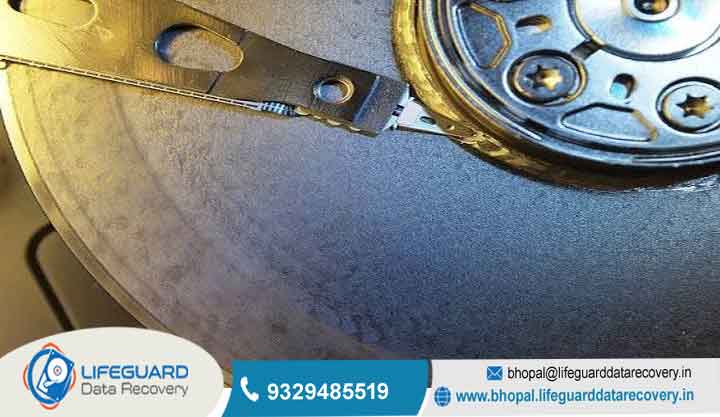
Physical (Hardware) Failure: Occurs when internal physical components break or degrade. In a traditional Hard Disk Drive (HDD), read/write heads float mere nanometers above magnetic platters spinning at 5,400 to 7,200 RPM. If a head touches the platter (a head crash), it physically gouges the magnetic layer, causing immediate, permanent data destruction. Physical failures also include burned Printed Circuit Boards (PCBs) and seized spindle bearings.
Logical (Software) Failure: The hardware itself remains fully functional, but the file system structure or partition table becomes corrupted. This can stem from improper shutdowns, malware, interrupted updates, or software bugs. Logical failures can often be repaired using software utilities, provided the underlying hardware is healthy.
Hard Drive Crash Symptoms: 8 Primary Warning Signs of Hard Drive Failure
If your computer exhibits any of the following eight signs of hard drive failure, assume your data is at risk and minimize drive usage immediately.
Auditory Red Flags: Hard Drive Making Clicking Noise or Grinding Sounds
A hard drive making clicking noise is the classic physical indicator of a severe mechanical failure. Known in the IT industry as the “Click of Death,” this sound occurs when the drive’s read/write head assembly attempts to initialize, fails to find its track or calibrate on the platter, resets to its baseline position, and repeats the process in an audible loop.
Other mechanical noises include:
Metallic Grinding: Indicates the read/write head is physically contacting and scratching the spinning platter surface.
High-Pitched Squealing or Whining: Points to failing spindle bearings or a seizing drive motor.
Severe System Slowdowns and Freeze Spikes
If simple tasks like opening File Explorer, copying a small folder, or booting up Windows suddenly take 10 to 20 times longer than usual, your storage drive may be struggling. A slow computer hard drive failing issue manifests when the operating system attempts to read data stored on deteriorating physical sectors. The drive retries the read operation hundreds of times before timing out, causing your whole system to lock up or freeze momentarily.
Frequent System Crashes and Blue Screen Errors
System instability is one of the most common failing hard drive symptoms. If crucial operating system files are stored on sectors that have deteriorated, Windows will crash during routine operations. Pay attention to recurring Stop Codes on the blue screen hard drive failure display, such as:
These codes frequently signal that the operating system lost communication with the primary boot storage.
4. File Corruption, Scrambled Data, and Disappearing Folders
Experiencing corrupted hard drive symptoms often means encountering files that refuse to open, display “File Format Not Recognized” errors, or disappear from folders without user action. Scrambled file names containing strange symbols are another symptom of corrupting directory indices on a degrading disk.
5. Accumulation of Bad Sectors and Read/Write Errors
Storage disks are divided into millions of tiny storage units called sectors. Over time, these sectors can degrade:
Hard Bad Sectors: Caused by physical contact, dust contamination, or wear. They cannot be repaired.
Soft Bad Sectors: Caused by sudden power loss during a write cycle.
When your system reports repeated bad sectors symptoms or flags persistent hard drive read/write errors during routine file saves, the drive’s internal microcode is running out of spare sectors to reallocate damaged areas.
6. Computer Won’t Boot or Operating System Missing
When a computer won’t boot hard drive failure occurs, the computer passes its initial Power-On Self-Test (POST) but fails to load Windows or macOS. You may see error messages on a black screen, such as
7. Hard Drive Not Detected in File Explorer or BIOS
A severe hardware issue occurs when a internal or external hard drive not detected error pops up. The drive may fail to appear in File Explorer, Windows Disk Management, or even the system BIOS/UEFI screen. This generally points to a blown PCB component, a dead SSD controller, or a head assembly that has parked permanently on the platter surface.
8. Extreme Drive Heat and Unresponsive File Indexing
While all storage media generates heat under heavy workloads, a drive that becomes uncomfortably hot while sitting idle is experiencing internal friction or electrical shorting. This physical strain often correlates with failed background file indexing, causing system search bars to freeze indefinitely.
Hard Disk Failure Symptoms vs. Normal Wear: How to Tell If a Hard Drive Is Failing
Not all system slowness is caused by physical drive failure. Software bloat, low RAM, background updates, or browser extensions can mimic hard disk failure symptoms. Understanding how to tell if a hard drive is failing requires evaluating specific hardware indicators against typical system slowdowns.
Diagnostic Matrix: Age, Usage Hours, and Health Indicators
Use this reference table to evaluate whether your drive is experiencing natural age, logical clutter, or genuine failure
Common Causes Behind Hard Drive Crash Warning Signs
Understanding what triggers hard drive crash warning signs helps prevent premature disk failure across your devices.
Mechanical Wear and Physical Shock Damage
External drives and laptop HDDs are particularly vulnerable to physical shock. Dropping a running laptop even a few inches can cause the floating actuator arm to slam into the spinning platter, producing instant head crash damage. Over time, simple mechanical friction degrades bearings and actuators.
Electrical Surges, Power Outages, and PCB Damage
Unstable power supplies or sudden grid outages generate voltage spikes that fry sensitive chips on a drive’s Printed Circuit Board (PCB). If the drive’s controller chip burns out, the media stops receiving power entirely, presenting as a dead drive.
Thermal Stress and Environmental Dust Contamination
High temperatures bake internal components, accelerating grease breakdown in spindle motors and degrading NAND flash memory in SSDs. Furthermore, while HDDs are sealed, they are not vacuum-packed they utilize air pressure equalization vents with microscopic filters. Severe dust build-up blocking these vents can disrupt air bearings inside the unit.
Hard Drive Dying Signs Identified: Step-by-Step Triage & Action Plan
When hard drive dying signs surface, your immediate response determines whether your data survives. Do not panic, and do not immediately run intensive utility repairs.
Emergency Shutdown (Preventing Platter Scoring)
If your drive is making audible clicking or grinding noises, turn off the computer immediately. Do not attempt to reboot. Continuing to run a mechanically damaged drive grinds the read/write heads directly into the magnetic layer, turning your data into physical dust.
Secure a Full System Image or Disk Clone
If the drive is quiet but showing severe errors, avoid copying individual files one by one (which creates excessive read head jumping). Instead, boot from a live USB drive and perform a sector-by-sector disk clone to a known healthy drive. This creates a bit-for-bit backup while subjecting the failing hardware to minimal wear.Need help recovering data from an already unreadable system? Learn about our specialized professional data recovery services to safely extract files in certified cleanroom environments.
Run Non-Destructive S.M.A.R.T. Health Scans
S.M.A.R.T. (Self-Monitoring, Analysis, and Reporting Technology) is a monitoring system built into storage drives. You can query this data safely using native terminal utilities without writing data back to the disk.
Pay close attention to these critical S.M.A.R.T. attributes:
Reallocated Sectors Count: The number of damaged sectors that have been retired and remapped to spare sectors. Any number above zero indicates physical degradation.
Current Pending Sector Count: Damaged sectors waiting to be remapped. A high count signals impending hardware failure.
Uncorrectable Sector Count: Total unreadable sector errors. High values confirm severe media damage.
Native Windows & Mac Disk Diagnostics (CHKDSK and Disk Utility)
CRITICAL SAFETY WARNING: Never run repair tools like on a drive that is physically clicking or grinding! Repair tools aggressively write to and read from the disk to fix file indices, which will accelerate physical mechanical failure.
If S.M.A.R.T. indicates physical health is acceptable and no noises are present, you can run operating system diagnostic tools to fix logical errors.
Prevention & Maintenance Tips Protecting Your Data from Future Failures
While hardware inevitably ages, taking proactive maintenance steps prevents data loss disasters.
Frequently Asked Questions (FAQs)
How long does a hard drive last after it starts clicking?
A clicking hard drive can fail completely within seconds, minutes, or a few hours of operation. The rhythmic clicking means the read/write head is failing to calibrate. Power off the device immediately to prevent permanent platter scratching.
Can a corrupted hard drive be fixed without losing data?
If the issue is purely logical (software file system corruption), tools like Disk Utility, or partition recovery software can often fix the drive structure without data loss. However, if corruption is driven by physical bad sectors or mechanical head damage, data must be extracted by professionals before hardware repairs can be made.
Should I run if my hard drive is making clicking noises?
No. You should never run on a physically noisy drive. performs millions of intensive read and write operations to test sector integrity, which will wear down failing mechanical heads and ruin ungouged platter surfaces.
What is the difference between a hard drive crash and a hard drive failure?
A drive crash typically refers to an abrupt, sudden physical event such as a read head crashing onto a platter or an SSD controller chip shorting out. A drive failure is a broader term that encompasses both sudden crashes and gradual degradation over time, such as the slow accumulation of bad sectors over several months.


