+971 50 634 3878 Sharjah, Dubai [email protected]
hard disk failure symptoms
Hard disk drives (HDDs) do not last forever. On average, a standard mechanical hard drive has a lifespan of Beyond this window, component wear, thermal expansion, and mechanical degradation significantly increase the risk of sudden drive death. lifeguard data recovery
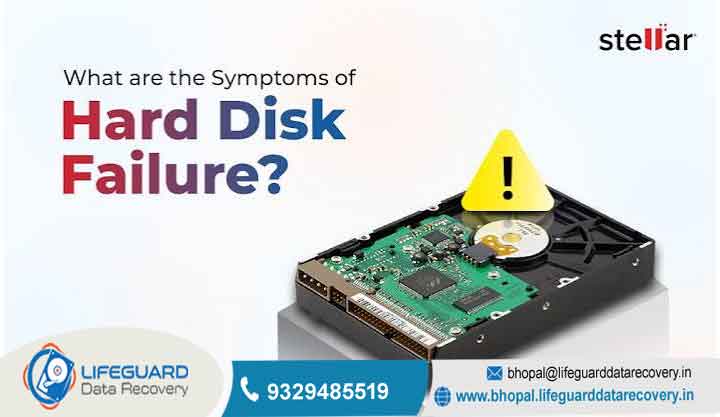
When a hard disk begins to fail, it rarely stops working instantly without any prior signals. Instead, it leaves behind distinct physical, performance, and software warning signs. Recognizing these hard disk failure symptoms early gives you the narrow window of opportunity needed to secure your files before total, unrecoverable drive failure occurs. Lifeguard data Recovery
What Causes Hard Disk Failures?
Understanding why a drive fails helps clarify why certain symptoms appear. Mechanical hard drives rely on rapidly spinning platters (usually RPM) and microscopic read/write heads floating mere nanometers above magnetic surfaces.
HARD DISK FAILURE TYPES:
Mechanical & Physical Failure: Wear and tear on moving parts (spindle motor, actuator arm, read/write heads), physical shocks, or power surges destroying the Printed Circuit Board (PCB).
Logical & Structure Failure: File system corruption, accumulation of unreadable bad sectors, or damaged partition tables. In logical failure, the physical drive hardware remains intact, but the operating system can no longer interpret the data structures correctly.
Top Physical and Sound-Based Hard Drive Failure Signs
Physical HDD failure symptoms are the most urgent warning signs you can encounter. They indicate that internal mechanical components are physically wearing down or colliding inside the drive enclosure.
Clicking, Grinding, and Buzzing Noises (“The Click of Death”)
If your drive is producing unusual sounds, pay immediate attention:
Repeated Clicking: Often referred to as the “Click of Death,” this rhythm occurs when the read/write actuator arm attempts to calibrate against the platter, fails to read the track, snaps back to its home position, and resets continuously.
Grinding or Scraping: This indicates direct contact between the read/write head and the magnetic platter surface (a severe head crash).
High-Pitched Whining or Buzzing: Typically points to a failing spindle motor or seized bearings trying to spin up.
2. Drive Overheating and Burning PCB Odors
While hard drives naturally generate moderate heat during intensive read/write tasks, excessive thermal output is an anomaly. If the drive casing becomes too hot to comfortably touch, or if you detect a burnt plastic/metallic smell, the drive’s Printed Circuit Board (PCB) or controller chips are suffering from electrical overload or short circuits.
3. Hard Drive Not Detected or Spinning Up Unusually
A hard drive not detected in File Explorer, Disk Management, or your system’s BIOS/UEFI often stems from mechanical power issues. If you hear the drive attempt to spin up, hesitate, click, and spin down repeatedly, the drive’s spindle motor cannot maintain operational velocity.
System Performance & Software-Based Failing Hard Drive Warning Signs
Software anomalies and operating system delays serve as early signs of hard drive failure before physical noises manifest.
Extreme System Slowdowns and Unresponsive File Access
When a drive encounters bad or degrading magnetic sectors, it attempts repeated read cycles to fetch the requested data block. This causes the operating system to hang, displaying slow hard drive performance, frozen file directories, or a perpetual loading wheel when accessing files.
Blue Screen of Death (BSOD) and Frequent System Crashes
If your system experiences frequent system crashes or displays a blue screen due to hard drive errors such as, the operating system is attempting to read a crucial system file residing on an unreadable sector.
Corrupted Files and Mysterious Data Disappearance
Are you noticing corrupted files on hard drive directories or finding that recently saved documents throw errors when opened? As sectors degrade, written data integrity breaks down, resulting in files disappearing from hard drive storage or showing zero-byte file sizes.
Hard Drive Bad Sectors Symptoms
Storage sectors are divided into two types:
Physical (Hard) Bad Sectors: Damaged areas caused by head contact, dust contamination, or physical impact.
Logical (Soft) Bad Sectors: Clusters where the Error Correcting Code (ECC) does not match the sector content, often caused by abrupt power loss during a write cycle.
Accumulating bad sectors cause exponential slowdowns as the drive re-allocates remaining healthy sectors to compensate.
Hard Drive Boot Failure
Experiencing hard drive boot failure or getting messages like “No Boot Device Found” or “Operating System Not Found” means the master boot record (MBR), GUID Partition Table (GPT), or primary boot sector has degraded. When a computer won’t boot hard drive paths, the drive cannot serve critical startup files to the system processor.
HDD Failure vs. SSD Failure Symptoms: Key Differences
Because Solid-State Drives (SSDs) use flash memory NAND chips rather than spinning platters, their failure modes differ significantly from traditional mechanical HDDs.
How to Test and Confirm a Hard Drive Failure
If you suspect your drive is experiencing hard drive failing symptoms, run native diagnostic checks immediately to verify drive health.
DIAGNOSTIC DECISION STEPS:
If the drive IS making noises: DO NOT RUN DIAGNOSTIC TESTS! Power off the drive immediately and seek a professional data recovery service.
If the drive is NOT making noises: Proceed to check S.M.A.R.T. health status via Windows Command Prompt or macOS Disk Utility.
1. Running a S.M.A.R.T. Test via Windows & macOS
Self-Monitoring, Analysis, and Reporting Technology (S.M.A.R.T.) monitors drive health attributes directly from the controller firmware.
Triage Protocol: What to Do Immediately When Your Hard Drive is Failing
If you encounter failing hard drive warning signs, follow this emergency response protocol:
Stop Stressing the Drive: Close high-load software, stop torrent downloads, and discontinue game play or rendering tasks.
Prioritize Unreplaceable Files: Do not run full-system backups first. Manually copy your irreplaceable files (family photos, critical work documents, financial records) to a cloud service or healthy external flash drive.
Avoid System Utilities: Do not run disk defragmentation software, deep antivirus scans, or third-party stress tests. These utilities apply intense, continuous read/write cycles that accelerate physical failure.
Disconnect and Isolate: If the drive begins clicking continuously or fails to display files, power down the system immediately to preserve the platter surfaces for professional recovery.
Best Practices to Prevent Hard Disk Failure & Protect Data
While mechanical wear is inevitable over time, proper maintenance protects your data against unexpected loss.
Implement the 3-2-1 Backup Rule: Keep 3 copies of your data, across 2 different storage media types, with 1 copy stored offsite or in the cloud.
Control Operating Temperatures: Ensure adequate fan airflow across drive bays. Maintain internal drive temperatures under 45°C (113°F).
Protect Against Power Anomalies: Connect your computer to a Uninterruptible Power Supply (UPS) with surge protection to protect the drive’s PCB against voltage spikes and sudden power loss during write cycles.
Avoid Physical Vibration: Never move, tilt, or jar a desktop tower or external HDD enclosure while the drive is active and platters are spinning.
Frequently Asked Questions
How long does a hard drive last after it starts clicking?
A clicking drive can experience total failure within minutes to a few hours of active operation. A clicking sound means the actuator arm is physically failing to align with platter tracks. Power off the system and back up critical files immediately.
Can a failing hard drive cause a Blue Screen of Death (BSOD)?
Yes. If your operating system attempts to read vital system files or access the virtual memory swap file stored on damaged sectors, Windows will trigger a Blue Screen error to prevent memory corruption.
Can software fix physical hard drive bad sectors?
No. Software utilities like can reallocate logical bad sectors or mark physical bad sectors as unusable so the OS skips them, but they cannot physically repair damaged magnetic platter surfaces.
Is it worth repairing a damaged hard disk drive?
Hard disk drives are assembled in sterile, dust-free class 100 cleanrooms and are designed as sealed units. Repairing a drive for daily use is not cost-effective. Drives are opened solely by specialized data recovery technicians to temporarily extract files.


