+971 50 634 3878 Sharjah, Dubai [email protected]
hard disk crash symptoms
Hard drive failures rarely happen without warning. Whether you are dealing with a standard mechanical hard disk drive (HDD) or an external backup drive, mechanical components and flash memory both show early warning indicators before complete failure occurs. Catching these early signs
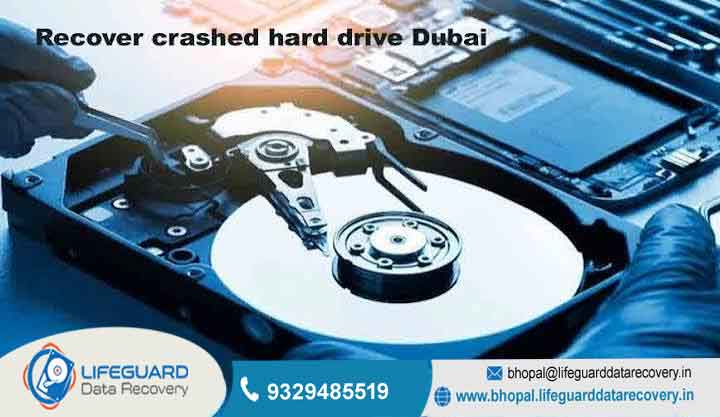
of hard drive failure gives you a narrow window to back up critical files before suffering catastrophic data loss lifeguard data recovery If your drive is actively making loud metallic clicking, grinding, or screeching sounds, hard disk crash symptoms Physical clicking indicates head-stack damage.
Continuous operation will physically scratch the magnetic platters, rendering recovery impossible Lifeguard Data Recovery
Hard Drive vs. SSD Failure: A Critical Distinction
Before troubleshooting, it helps to understand what type of storage drive you are using. Mechanical HDDs and Solid-State Drives (SSDs) fail in fundamental, structurally distinct ways:
Hard Disk Drives (HDDs): Depend on spinning magnetic platters and mechanical read/write heads floating nanometers above the disk surface. They usually give physical, audible warning signs before a crash.
Solid-State Drives (SSDs): Rely on electronic NAND flash chips and controllers without moving parts. When SSDs fail, they typically do so silently and suddenly, or lock themselves into a permanent “Read-Only” mode.
Knowing the internal mechanics helps clarify why mechanical drives generate distinct physical sounds when failing.
8 Critical Signs of a Hard Disk Crash
If your storage drive is experiencing hardware degradation or bad sectors, one or more of these common hard disk failure signs will surface during regular use.
Strange Mechanical Noises (Clicking, Grinding, or Screeching)
Hearing a repetitive clicking sound (often referred to as the “Click of Death”) usually means the read/write actuator head is failing to recalibrate against the drive platter and is repeatedly snapping back to its original position. Grinding or screeching noises indicate failing spindle motor bearings or direct physical contact between the head assembly and the magnetic media.
Blue Screen of Death (BSOD) and Frequent System Crashes
If your operating system is installed on a drive with bad sectors, system files will become unreadable during boot or regular tasks. On Windows, this triggers stop codes such as or
Severe System Slowdowns and File Explorer Freezes
When Windows or macOS attempts to read data from a corrupted sector, the operating system hangs while re-trying the read operation thousands of times. If opening a simple folder in File Explorer freezes your computer for 30 60 seconds, your drive is likely encountering bad sectors.
Corrupted Files, Scrambled Data, or Disappearing Folders
Files that suddenly refuse to open, show “File Format Not Recognized” errors, or disappear from folders without user action signal silent data corruption caused by failing storage blocks.
Accumulation of Bad Sectors and S.M.A.R.T. Warning Alerts
Modern hard drives feature Self-Monitoring, Analysis, and Reporting Technology (S.M.A.R.T.) to track internal health metrics. When the drive exhausts its allocated pool of spare sectors used to replace broken ones, a system-level hardware health alert will pop up.
Drive Not Detected or “Boot Device Missing” Errors
Intermittent drive detection where your PC boots fine one day but shows a “Reboot and Select Proper Boot Device” error the next indicates an unstable PCB (printed circuit board), bad cable connection, or failing drive controller.
Abnormally High Drive Operating Temperatures
A drive running continuously above 50°C (122°F) under light loads often points to a failing spindle motor or excessive friction inside the drive casing. Extreme heat significantly speeds up platter degradation.
File Copy Errors and Aborted Transfer Processes
Receiving consistent “Cyclic Redundancy Check” (CRC) errors or having file transfers abruptly pause and abort halfway through is a clear sign that write operations are failing on target sectors.
Primary Causes of Hard Disk Failure
Understanding why drives crash helps prevent future loss:
Mechanical Wear and Age: Mechanical hard drives have a average operational lifespan of 3 to 5 years. Over time, spindle bearings wear down and head alignment drifts.
Overheating: Sustained temperatures above manufacturer thresholds degrade electrical components on the external PCB controller.
Electrical Power Surges: Voltage spikes or sudden power outages during write cycles can cause head crashes or burn out power regulators.
Physical Impact and Drops: Even small drops while the disk platters are spinning at 5,400 or 7,200 RPM cause the read/write heads to physically collide with the magnetic surface.
How to Diagnostic Your Hard Drive Safely
If you suspect your drive is degrading, follow this non-destructive testing sequence.
Caution: Do NOT run intensive disk repair scans like on a physically clicking or grinding hard drive. Forceful read/write sweeps on failing hardware can cause total mechanical destruction.
Check S.M.A.R.T. Health Status via Windows PowerShell
Open PowerShell as Administrator and enter the following non-destructive query to read the system drive status:
PowerShell
If the status returns anything other than Healthy, immediately prepare to back up your data.
Check Health Metrics with CrystalDiskInfo
For detailed insight, download a lightweight diagnostic utility such as CrystalDiskInfo. Pay close attention to these specific raw attribute lines:
Reallocated Sectors Count: Indicates sectors that have already failed and been remapped.
Current Pending Sector Count: Sectors waiting to be remapped due to read errors.
Uncorrectable Sector Count: Total unreadable sector failures.
Emergency Action Plan What to Do When a Hard Drive Crashes
Power Down Non-Essential Tasks: Close resource-heavy apps and stop downloading files to prevent new write operations.
Rescue Critical Files First: Immediately copy your most important documents, photos, and databases to a cloud drive or USB stick. Do not waste time creating a full system image if the drive is unstable.
Clone the Drive (If Operational): Use sector-by-sector cloning software to create an exact image of the drive onto a healthy storage disk.
Contact Professional Data Recovery: If the drive is making heavy mechanical noises or fails to show up in BIOS/Disk Management, send it to a specialized data recovery cleanroom.
Frequently Asked Questions
Can a crashed hard drive be repaired?
If the crash is logical (corrupted file system structure or partition table), software tools can often fix it. However, if the crash is mechanical (head crash or motor seizure), the physical drive cannot be permanently repaired for reuse it can only be serviced temporarily inside a cleanroom to extract data.
How long does a hard drive last once it starts clicking?
A clicking hard drive can fail completely within seconds or last a few hours. Because head assembly contact causes physical wear on the magnetic coating, treat a clicking drive as an immediate emergency.
Is a slow computer always a sign of hard drive failure?
No. Computer slowdowns can also stem from background malware, low RAM availability, high CPU usage, or thermal throttling. Check your disk activity in Task Manager: if active disk usage stays at 100% despite minimal read/write activity, drive failure is very likely.


