+971 50 634 3878 Sharjah, Dubai [email protected]
function of hard drive disk
Modern computing relies entirely on our ability to access data instantly and permanently. Whether you are launching an operating system, opening a massive database, or loading a saved file, your computer relies heavily on its secondary storage architecture. Understanding the exact function of a hard drive
disk (HDD) not only helps you maximize your system’s performance but also protects you from catastrophic data loss when those mechanical components begin to degrade. Lifeguard data recovery
What is the Main Function of a Hard Drive Disk (HDD)?
The essential function of hard drive disk systems within a computer framework is to provide persistent, non-volatile data storage or modified. It serves as the permanent digital filing cabinet for your operating system, software programs, system architectures, and personal files. Lifeguard Data Recovery
How an HDD Works: Platters, Heads, and Magnetic Storage
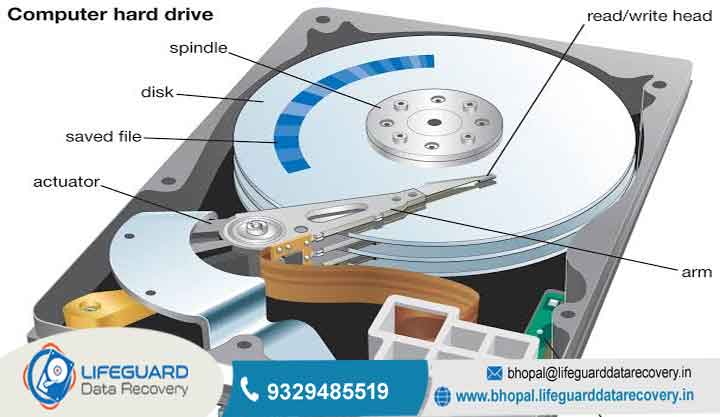
Internally, a hard drive is an incredibly precise piece of electromechanical engineering. It consists of circular, highly polished aluminum or glass discs called platters, which are coated with a microscopic magnetic layer. These platters spin at high speeds typically Revolutions Per Minute (RPM).
As they spin, an electromagnetic component called a read/write head flies mere nanometers above the surface on a cushion of air. The head alters the magnetic alignment of specific microscopic clusters on the platter to represent binary code (1s and 0s), or reads those alignments to pull data back into the system.
Hard Drive vs. RAM: Persistent vs. Temporary Storage
To understand the drive’s function completely, it must be contrasted with primary memory, or Random Access Memory (RAM). RAM is volatile; it is lightning fast but requires continuous electrical power to hold data. When you open a program like a video editing tool, the CPU pulls the permanent files from the hard drive disk and loads them temporarily into RAM for fast active processing. When you hit “Save,” those changes are pushed back down to the HDD’s magnetic platters for long-term safekeeping.
Crucial Symptoms of a Dying Hard Drive
Because hard disk drives rely entirely on moving mechanical parts, they are governed by physical wear. Over time, bearings dry out, magnetic coatings degrade, and mechanical shock can cause physical damage. Recognizing the earliest symptoms of a dying hard drive allows you to migrate your critical files safely before the drive stops communicating with your motherboard altogether.
The Warning Signs: Slow Computer Hard Drive Failure & Freezing
One of the most insidious early signs of a drive’s degradation is a gradual, systemic slowdown. A slow computer hard drive failure occurs when the read/write heads encounter sectors on the platters that are losing their magnetic integrity. The drive will struggle to read the data, forcing the operating system into a loop of continuous read retries.
This loop causes a distinct computer freezing hard drive issue, where the mouse might move but applications hang for 30 to 60 seconds at a time. If your system frequently locks up when opening folders or accessing large files, the drive is likely struggling to navigate damaged tracks.
File Corruption and Disk Read Errors
As magnetic breakdown accelerates, the data blocks containing structural file data can become unreadable. This manifests clearly as a corrupted files hard drive error files that opened perfectly last week suddenly throw integrity warnings or open as unreadable text. Eventually, if the corrupted sectors happen to reside within the boot records or critical operating system paths, the system will fail to boot entirely, generating severe disk read error symptoms like the dreaded to restart” prompt at startup.
Identifying Mechanical Failures: Hard Drive Making Clicking Noise or Beeping
While software degradation happens quietly, physical, internal damage usually announces itself with distinct auditory anomalies. These sounds mean the physical architecture inside the metal casing is actively failing.
Why Your Hard Drive is Making a Clicking Noise (The “Click of Death”)
Hearing a persistent, rhythmic hard drive making clicking noise is an immediate indicator of severe mechanical distress. Often referred to by technicians as the “Click of Death,” this sound occurs when the actuator arm (which controls the read/write heads) malfunctions.
If the head cannot read the tracking data on the platter due to physical damage or a failed preamp chip, the arm will wildly sweep back and forth across the disc, repeatedly striking the mechanical stop limiter at the end of its track.
What a Hard Drive Beeping Noise Indicates
Unlike an electronic beep from a motherboard speaker, a hard drive beeping noise is a mechanical cry for help. It usually indicates a condition known as stiction (static friction). This occurs when the read/write heads fail to park safely off the platters during a power-down and instead drop directly onto the media surface. The platters are pinned down, and the internal spindle motor tries to spin up but can’t, producing a faint, rhythmic electronic humming or beeping noise as it strains against the stuck arm.
Troubleshooting and Fixes for a Malfunctioning Hard Drive
When your system begins showing signs of instability, your response window is incredibly tight. Managing the situation appropriately depends on whether the drive is suffering from structural mechanical failure or minor logical errors.
Is There a Reliable Clicking Hard Drive Fix?
It is critical to be realistic about hardware damage: there is absolutely no software utility, driver update, or DIY trick that can act as a permanent clicking hard drive fix. If the drive is clicking or grinding, the problem is physical.
Important Warning: Running software diagnostics on a mechanically failing drive will accelerate platter scratching, potentially scraping away the magnetic film containing your files. When mechanical components fail, attempting DIY software fixes can permanently destroy your data; instead, you should immediately consult a [certified hard drive data recovery service] to safely salvage your files in a cleanroom environment.
How to Read and Respond to a SMART Hard Drive Warning
Most modern hard drives feature an internal predictive diagnostic tool called S.M.A.R.T. (Self-Monitoring, Analysis, and Reporting Technology) exceeded.
Resolving Logical Errors via CHKDSK and File System Repairs
If your drive passes all physical sound tests and shows healthy S.M.A.R.T. attributes, your file corruption or freezing could be purely logical. In these instances, you can use built-in Windows utilities to repair the file index:
How to Prevent Hard Drive Failure and Data Loss
While physical wear is inevitable over several years of operation, you can mitigate environmental stressors to prolong the operational life of your HDD:
Mitigate Kinetic Shock: Never move your computer tower or laptop while the internal hard drive is spun up and actively writing data.
Keep Thermals Low: Ensure adequate airflow across your storage bays; sustained heat above 45°C accelerates the degradation of internal mechanical lubricants.
Establish Automated Redundancy: Relying on a single physical drive to safeguard your data violates basic security frameworks. Implement a automated backup system that mirrors your drive to an external device or cloud infrastructure continuously.
Frequently Asked Questions (FAQs)
How long does a standard hard drive disk last?
Under normal consumer workloads with stable operating temperatures, a standard mechanical hard drive typically has an operational lifespan of 3 to 5 years. Beyond this window, the probability of mechanical component fatigue rises significantly.
Can a virus cause a hard drive to make a clicking noise?
No. A computer virus or malicious script can cause logical errors, file deletions, or system freezes, but it cannot alter physical geometry to cause mechanical clicking or beeping noises. Loud physical noises are strictly hardware failures.
What should I do immediately if my computer keeps freezing due to the hard drive?
Minimize drive activity immediately. Avoid installing new programs, downloading files, or running stressful system stress tests. Backup your core files immediately while the drive is still recognized by the operating system, then prepare to swap the unit for a new storage drive.


