+971 50 634 3878 Sharjah, Dubai [email protected]

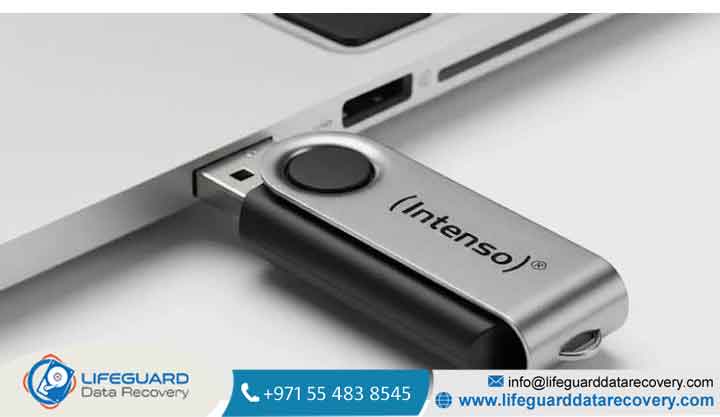
Can USB Flash Drive Data Be Recovered?
Losing critical documents, photos, or work files from a USB flash drive can trigger immediate panic. Whether you accidentally unplugged the drive during a file transfer, clicked “Format” by mistake, or encountered a message declaring the drive corrupt, the central question remains: Can USB flash drive data be recovered?
Yes, in the vast majority of cases, USB flash drive data can be successfully recovered.
However, your exact recovery pathand Lifeguard Data Recovery your probability of success depends on whether your data loss stems from logical damage (softw re or file system corruption) or physical damage (broken hardware components) Lifeguard Data Recovery
Quick Diagnosis: Determining If Your USB Data Is Recoverable
Before applying any fixes, you must identify what type of damage your flash drive has sustained. Attempting software repairs on a physically degraded drive can cause permanent data loss.
The Golden Rule of Flash Memory: Stop Writing New Data
When you delete a file or format a USB drive, your operating system does not immediately wipe the raw bytes from the physical NAND flash memory cells. Instead, it marks those storage blocks as “unallocated” or available for new data.
Because standard USB flash drives running over the USB Mass Storage Protocol do not execute automatic TRIM commands like internal SSDs, your deleted data remains untouched until overwritten. Immediately unplug the USB drive and refrain from saving new files, running aggressive repair tools, or installing software directly onto the device.
Logical Damage vs. Physical Damage (Assessing Your Chances)
Logical Damage
Common Symptoms: Drive recognized, but files missing; prompted to “Format disk before use”; file system listed as RAW; files deleted via Shift + Delete.
Primary Causes: Improper ejection, interrupted transfers, virus infections, corrupted partition tables.
Recovery Odds & Action Plan: High (80%–95%). Recoverable using command-line tools, disk imaging, or recovery software.
Physical Damage
Common Symptoms: Snapped USB-A or USB-C connector; drive becomes scalding hot; Device Manager shows 0 Bytes or “Unknown Device”; physical cracks on the enclosure.
Primary Causes: Drops, excessive bending, electrical power surges, liquid submersion, NAND cell wear.
Recovery Odds & Action Plan: Variable. Requires a professional USB data recovery service, micro-soldering, or chip-off extraction.
Traditional Standard USBs vs. Monolithic USB Sticks
Understanding your drive’s internal structure dictates what can be done if hardware fails:
Standard USB Flash Drives: Feature a standalone Printed Circuit Board (PCB), a distinct controller chip, and surface-mounted NAND flash memory chips. Connectors, capacitors, and controller traces can often be micro-soldered individually.
Monolithic USB Flash Drives: Feature all components (controller, memory cells, wiring) encapsulated in a single epoxy block. Micro-USB “fit” drives and ultra-compact thumb drives are almost exclusively monolithic. If a monolithic drive fractures, internal microscopic trace lines break, ruling out standard board repairs and requiring microscopic pin-out recovery.
Common Causes of USB Data Loss and Corruption
Understanding how flash memory fails helps in selecting the correct recovery pathway:
Accidental Deletion and Drive Formatting: Flash drives lack a native operating system Recycle Bin buffer. Deleting a file bypasses temporary folders and immediately marks the directory entry as available space.
File System Corruption (RAW, Unallocated, or “Must Format” Errors): Removing a USB drive while the operating system is actively updating the Master File Table (MFT) or File Allocation Table (FAT) corrupts file indexes, forcing the OS to treat the volume as RAW. Explore our guide on RAW drive file system repair options to resolve volume errors safely.
NAND Flash Cell Wear and Controller Exhaustion: Flash memory cells possess finite Read/Write cycles (Program/Erase limits). Over time, degraded cells lose the ability to hold an electrical charge, leading to read errors.
Physical Wear, Bent Connectors, and Liquid Exposure: Mechanical strain on ports, fractured solder joints, or fluid-induced short circuits physically isolate the memory chip from the host computer.
Step-by-Step Guide: How to Recover Data from a USB Drive
If your drive is physically intact and recognized by your operating system, follow these steps to rescue your files.
What to Do When the USB Drive Is Physically Damaged or Dead
When circuit boards, controller chips, or connector pins break, software tools cannot establish a connection.
Signs Your USB Flash Drive Has a Hardware Failure
Device Manager displays “Unknown USB Device (Device Descriptor Request Failed)” or 0 Bytes capacity.
The flash drive becomes hot to the touch within seconds of being plugged in.
The physical connector is bent, cracked, or loose.
The drive fails to detect across multiple separate computers.
Dangerous DIY Repair Myths to Avoid
Avoid these high-risk hacks often circulated online:
The Freezer Myth: Freezing flash media introduces moisture and condensation inside delicate micro-circuits, causing immediate short circuits upon powering up.
Applying Direct Heat: Using heat guns or hair dryers de-solders micro-components, warps substrate boards, and damages raw NAND die layers.
Bending Connectors Back: Forcing a bent connector back into place tears conductive copper trace pads off the PCB board, destroying trace connections.
How a Professional USB Recovery Service Rescues Broken Hardware
If your drive suffers physical failure, technicians at an advanced NAND flash recovery lab bypass broken board components using hardware tools:
Micro-Soldering: Technicians repair fractured trace pads or replace blown capacitors on standard PCBs.
Chip-Off Recovery: Lab engineers desolder the physical NAND memory chip from the circuit board.
Raw Memory Dumping: The memory chip is placed into a hardware programmer (like PC-3000 Flash) to extract raw binary data dumps.
Algorithm Emulation: Engineers manually reverse-engineer controller wear-leveling, XOR patterns, and Error Correction Codes (ECC) to reassemble raw memory into usable files.
Best Practices to Prevent Future Data Loss on USB Drives
Always Use “Safely Remove Hardware / Eject”: Abruptly unplugging a flash drive during background write-caching corrupts file allocation tables.
Implement the 3-2-1 Backup Strategy: Treat USB flash drives strictly as transport media, not primary backup storage. Maintain 3 copies of important data across 2 different media types, with 1 off-site copy.
Choose Quality Hardware: Invest in high-grade flash drives built with durable NAND memory cells (SLC/MLC) rather than cheap promotional or unbranded drives.
Frequently Asked Questions (FAQs)
Can I recover files from a formatted USB drive for free?
Yes. If you performed a Quick Format (which wipes file indexes but leaves data blocks intact), open-source and free tools like PhotoRec or Recuva can scan raw sectors and retrieve files without cost.
How can I recover data from a USB flash drive that is not recognized?
First, check if the issue is host-side: test different USB ports, check Disk Management (Windows) or System Information (Mac), and update host USB drivers. If the drive fails to register hardware ID across multiple systems, it requires professional laboratory extraction.
How much does a professional USB flash drive recovery service cost?
Costs depend on the failure type. Logical recovery or minor board repairs generally cost between and Complex physical extractions, such as chip-off recovery or monolithic pin-out tracing, typically range from depending on component complexity.
Can water-damaged USB drives be saved?
Yes provided the drive was not powered on while wet. Do not plug in a wet drive. Rinse it in 99% isopropyl alcohol to displace water and contaminants, allow it to dry completely for 48–72 hours, and assess it afterward.


