+971 50 634 3878 Sharjah, Dubai [email protected]

Can MacBook SSD Data Be Recovered?
Losing access to your personal files, business documents, or creative projects stored on a MacBook can feel alarming. When a Mac crashes, gets exposed to liquid, or accidentally loses a deleted directory, the immediate question is simple: Can MacBook SSD data be recovered? The short answer is yes
data recovery from a MacBook SSD is possible in most cases. However, how you recover your data (and whether software alone will work) depends entirely on your MacBook’s release year, its internal security architecture, whether the TRIM command has cleared the drive, and the physical Lifeguard Data Recovery
health of its logic board This comprehensive guide breaks down modern Mac storage mechanics, outlines exact recovery steps for logical and physical failures, and explains how to avoid permanent data overwrites Lifeguard Data Recovery
Understanding MacBook SSD Architecture: Why Recovery Is Different
Data recovery on modern MacBooks operates under fundamentally different rules than on traditional PCs or older Mac laptops. Apple’s transition away from removable storage and toward integrated, highly encrypted hardware altered the data extraction process.
NVMe Soldered Storage vs. Removable Drives
On older laptops, if the computer died, a technician could unscrew the bottom panel, pull out the storage drive, insert it into a external USB enclosure, and copy the files There is no modular drive to detach or plug into another system.
The Role of Apple Security Chips (T2, M1, M2, M3, M4) & FileVault
Crucial Reality: Performing “chip-off” recovery desoldering the NAND storage chips from a dead Mac board and reading them using a hardware programmer results in useless, mathematically unreadable ciphertext. To extract files, the logic board must be functioning enough to allow the Secure Enclave to initialize and decrypt the data in place.
How the TRIM Command Affects File Erasure
When you delete a file on a traditional hard drive (HDD), the operating system simply marks the storage sector as “available” while the raw data stays behind until overwritten.
Solid State Drives (SSDs) behave differently due to the TRIM command. TRIM informs the SSD controller which data blocks are no longer in use, allowing the drive’s background garbage collection to proactively erase those blocks so future write operations remain fast. Once TRIM executes, deleted files are permanently zeroed out making recovery impossible even for advanced data labs.
Signs and Symptoms of a Failing or Corrupted MacBook SSD
Recognizing early warning indicators allows you to secure your data before total hardware or volume collapse occurs:
S.M.A.R.T. Errors: macOS throws system warnings that the internal disk has detected a hardware fault.
Read-Only Lock: The operating system suddenly forces your internal drive into a read-only state to prevent further corruption.
Persistent Beachballs & Slow File Operations: Opening small documents or launching built-in apps causes the cursor to freeze for extended periods.
Unmountable APFS Volumes: Disk Utility shows the main volume grayed out or reports
Prohibitory Sign or Flashing Question Mark Folder: Upon booting, the Mac displays a , indicating it cannot locate a valid, bootable system volume.
Step-by-Step Methods to Recover Data from MacBook SSD
If you are experiencing data loss, follow these technical recovery paths sequentially moving from non-intrusive built-in tools toward advanced recovery solutions.
Restoring via Built-In macOS Backup Tools (Time Machine & APFS Snapshots)
If your Mac boots normally or reaches macOS Recovery, checking local backups is your fastest option.
Check Local APFS Snapshots: Even without an external drive attached, APFS automatically preserves point-in-time snapshots
Professional Micro-Soldering & Hardware Recovery (For Dead Logic Boards)
When a MacBook suffers from a dead power rail, shorted capacitors, or liquid damage, software solutions cannot communicate with the drive.
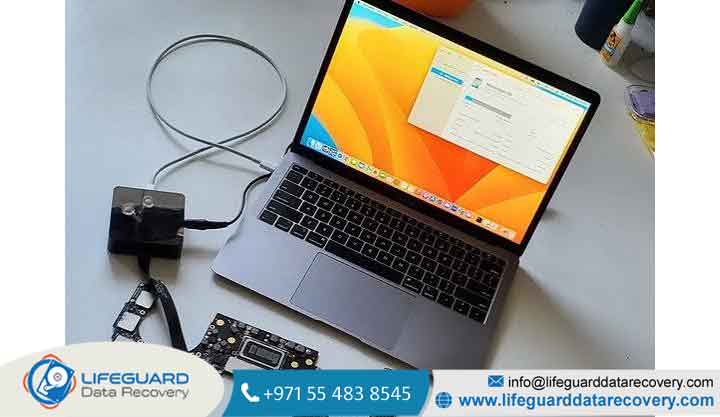
Because the NAND storage chips and the Secure Enclave are hardware-paired, you cannot swap the drive or solder the NAND onto another machine.
In these scenarios, specialized recovery labs must perform component-level logic board repair:
DFU Revive Attempt: Technicians use Apple Configurator via a secondary Mac to attempt a
firmware “Revive” (which updates boot code without erasing user data encryption keys).
Micro-Soldering Power Lines: If a short exists, technicians inspect the logic board under a
microscope, isolate failing capacitors or power-management ICs, and solder fresh components.
In-Place Decryption: Once power flow is restored to the SoC and NAND arrays, the board boots into a diagnostic target mode, allowing full decryption and data extraction over Thunderbolt.
Essential Rules to Prevent Permanent SSD Data Overwrites
When you realize files are missing or your drive is failing, immediate action is necessary:
STOP Using the Mac Immediately: Close all apps and stop browsing the web. Normal OS operations constantly generate temp files and cache, overwriting deleted storage blocks.
DO NOT Install Recovery Utilities Directly to the Internal SSD: Download software onto a flash drive or another computer.
Turn Off Wi-Fi & Internet: Disabling connectivity prevents background macOS synchronization services, cloud uploads, and automated update writes.
Avoid Running Continuous Reboots on Liquid-Damaged Laptops: Attempting to turn on a wet or shorted logic board causes immediate electrical scorching across circuit traces, potentially frying the Secure Enclave processor.
Best Practices to Protect Your MacBook Data
Because solid-state storage operates with tight hardware encryption and aggressive garbage collection, preventing data loss is far easier than performing emergency recovery.
Implement the 3-2-1 Backup Strategy: Keep 3 copies of your data, across 2 different storage media types, with 1 copy stored off-site.
Automate Time Machine: Keep an external USB-C drive or network storage drive plugged in regularly. Time Machine handles background backups with zero system friction.
Enable Cloud Synchronization: Store active project folders within verified cloud platforms (e.g., iCloud Drive, Google Drive) that retain an online “Version History” or “Trash Bin” independent of local TRIM commands.
Store Your FileVault Recovery Key: Always record your FileVault master key in a secure password manager. If your logic board crashes, hardware recovery labs will require your credentials to decrypt the volume.
Frequently Asked Questions (FAQs)
Can you recover data from a MacBook SSD after TRIM has executed?
Once the TRIM command completes its garbage collection cycle on an SSD, the data blocks are zeroed out at a hardware level. At that point, file recovery is virtually impossible for both software tools and professional labs. However, if the drive was corrupted (rather than files manually deleted), TRIM may not have cleared those sectors.
Can data be retrieved if the MacBook logic board is completely dead?
Yes, provided the NAND chips and the Secure Enclave processor are uninjured. Recovery labs do not remove the storage chips; instead, they perform component-level micro-soldering on the logic board to temporarily restore power to the system, allowing the hardware to decrypt and export your data.
Does FileVault encryption make SSD data recovery impossible?
No. FileVault secures your data against unauthorized access, but it does not prevent recovery as long as you know your administrator password or possess the 28-character FileVault Recovery Key. Data recovery tools and technicians apply this key during the scan to unlock the raw volume.
Can I physically remove the SSD from a modern MacBook and read it on a PC?
No. On all MacBook Air and Pro laptops introduced since 2018, storage chips are permanently soldered to the motherboard. They do not use standard M.2 slots, and raw data on the chips remains encrypted by the board’s Secure Enclave.


