+971 50 634 3878 Sharjah, Dubai [email protected]

Can Corrupted SD Cards Be Repaired?
NAND Memory Architecture & Wear: SD cards rely on NAND flash memory managed by a micro-controller. Flash memory cells possess limited Program/Erase (P/E) cycles. Cell wear, bad blocks, or controller firmware locks often force cards into a permanent read-only mode or render them unreadable at the hardware level Lifeguard Data Recovery
CHKDSK & Command-Line Utility Risks: Running automated repair scripts directly on a corrupted card alters the master boot record (MBR) and File Allocation Table (FAT/exFAT). If index headers are fragmented, these tools convert orphaned files into file fragments, destroying recoverable original file names and folder trees. Data recovery must always precede drive repair Lifeguard Data Recovery
RAW Filesystem State: An SD card presents as a “RAW” filesystem when its partition table, boot sector, or file system metadata becomes unreadable to the operating system. The physical data often remains intact on the NAND cells behind the broken file system index Can Corrupted SD Cards Be Repaired?
Monolithic MicroSD Recovery: Standard SD cards contain separate PCBs, controllers, and flash chips. MicroSD cards use a monolithic design where the controller, NAND circuit, and traces are encapsulated in a single epoxy shell. Physical or severe electrical repairs on monolithic cards require specialized pinout scraping, micro-soldering, and direct logic analyzer reads in a forensic lab setting.
Inserting an SD card into your camera, drone, or laptop only to see an error message or worse, a completely blank folder is a frustrating experience
When Repair Is Possible (Logical vs. File System Corruption)
Logical corruption occurs when the physical memory cells remain functional, but the file system structure organizing your data breaks down. Common repairable scenarios include:
Corrupted FAT32 / exFAT Tables: The index mapping file locations becomes unreadable, causing the host OS to report SD card file system corruption.
RAW Format Status: The operating system detects the drive hardware, but cannot parse its volume format.
Interrupted Writes: Removing the card mid-transfer leaves partial file headers, preventing normal mounting.
When Repair Is Impossible (NAND Wear, Controller Failure, and Physical Damage)
When hardware fails, software fixes cannot restore functionality:
Worn-Out NAND Flash: Every flash memory card has finite write cycles. When cells degrade completely, onboard controllers lock the card into a permanent “Read-Only” protection state to prevent further damage.
Micro-Controller Bricking: If the tiny onboard controller managing read/write requests burns out, the host device will not detect the card at all.
Physical Cracks or Snapped Substrates: MicroSD cards constructed as epoxy monoliths cannot be spliced back together if bent or snapped.
Common Causes of SD Card Corruption
Understanding how corruption happens helps prevent future data loss and guides the appropriate recovery method.
Improper Ejection and Interrupted File Transfers
Pulling an SD card out of a card reader or camera while data is being written breaks file indexing. Operating systems utilize write-caching to increase performance. If you disconnect the card before these cached operations write completely, the file allocation table breaks, triggering an SD card not reading error on your next session.
NAND Flash Cell Degradation and Bad Blocks
SD cards lack the complex Wear Leveling algorithms and DRAM caches found in enterprise SSDs. Over time, individual memory cells exhaust their program/erase limits. When key sectors containing boot records wear out, the entire card becomes unstable or unreadable.
Malware, Bad Sectors, and Filesystem Header Bugs
Connecting memory cards to infected computers or swapping cards across incompatible operating systems (e.g., pulling a card from an Android device and placing it into an older camera) can corrupt volume headers or infect root directories with malicious scripts.
Key Symptoms of a Damaged or Corrupted Memory Card
Diagnosing your memory card’s specific symptoms helps determine whether you need a quick drive letter fix, specialized software, or professional lab equipment.
Error Messages (“Format Disk,” “Access Denied,” or “RAW Drive”)
“You need to format the disk before you can use it”: The OS recognizes the controller, but cannot parse the primary file partition.
“Location is Not Accessible / Access Denied”: File directory permissions or master boot records have suffered bit rot or logical damage.
RAW File System: Windows Disk Management lists the card partition format as
RAW instead of FAT32 or exFAT.Hardware Recognition Issues (Missing Drive Letter, Zero Bytes Capacity)
Drive Letter Disappears: The card triggers a connection chime on host systems, but fails to mount as an accessible drive volume in File Explorer or Finder.
Capacity Drops to 0 Bytes: The operating system sees an uninitialized device with no storage space available, pointing to damaged partition headers or corrupted memory card recovery scenarios.
Continuous Freezing: Inserting the card causes host applications (such as Windows File Explorer, Disk Management, or macOS Finder) to lock up entirely until the card is removed.
Physical Signs (Worn Contacts, Jammed Write-Protect Switch)
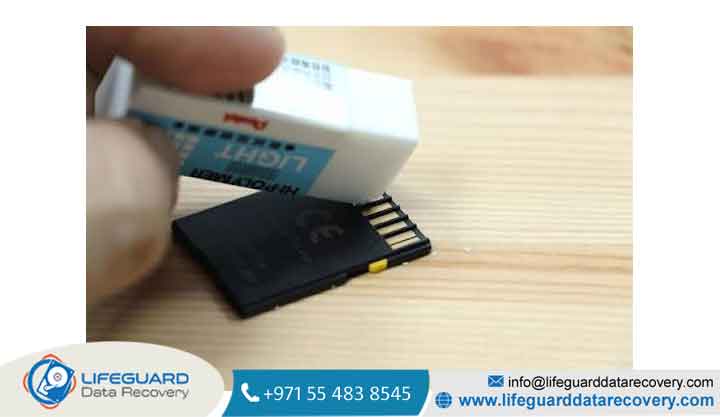
Dirty or Oxidized Pads: Gold contact pads on the back of full-sized SD cards accumulate oils, dirt, or tarnish over time, impeding electrical conductivity.
Broken Write-Protect Switch: On full-sized SD cards, a loose or broken plastic lock switch on the side can slide into the “Locked” position automatically when inserted into a card reader.
CRITICAL Recover Data Before Attempting Any Repair Fixes
Before attempting to repair corrupted memory card volumes, you must prioritize preserving your files. Attempting repair operations directly on an unstable card can result in permanent data loss.
Why Repair Tools (Like CHKDSK) Can Destroy Unsaved Files
System utility tools like Windows
CHKDSK or macOS First Aid are designed to bring file systems back into a working state not to salvage personal photos or videos. When running automated repair scripts on a corrupted card:The tool identifies orphan sectors or incomplete file index tables.
It strips missing headers and consolidates fragmented data into truncated files.
This process overwrites original file names, folder structures, and metadata, turning recoverable photos
or video recordings into unreadable raw chunks.
How to Create a Sector-by-Sector Image File First
To ensure safety during recover data from corrupted SD card operations, always work off an image clone of the card rather than the original physical hardware:
Connect the SD card to your host computer via a reliable USB card reader.
Use a free imaging utility (such as FTK Imager, Win32 Disk Imager, or the Linux
dd command) to capture a bitstream sector-by-sector clone of the card.Save the image file to your computer’s internal storage drive.
Safely unmount the physical SD card and perform all recovery software scans directly against the saved image file.
Running Software-Based Corrupted Memory Card Recovery
Once your sector-by-sector image file is secured, run non-destructive SD card data recovery software directly on the target image. File recovery engines scan deep within raw storage blocks to locate photo and video signatures (such as JPEG, CR2, MP4, or MOV headers) even when file system
index tables are entirely missing.
Step-by-Step Fixes: How to Repair Corrupted Memory Cards
Once your critical files are safely backed up or extracted, you can safely proceed with corrupted SD card repair using the following step-by-step methods.
Basic Hardware Checks (Cleaning Contacts, Trying Different Readers/Ports)
Before making software changes, rule out simple physical connection issues:
Clean the Gold Contacts: Gently wipe the contact pads on the rear of the card using a micro-fiber cloth lightly dampened with 99% isopropyl alcohol to remove grease and oxidation.
Bypass USB Hubs: Plug your card reader directly into an onboard motherboard USB port on your desktop or laptop rather than through an unpowered external USB hub.
Test on an Alternate Reader: Card reader chips frequently wear out or fail to support high-capacity SDXC/SDUC protocols. Try mounting the card using a secondary reader or a different device.
Assigning a New Drive Letter (Windows)
When an SD card not detected issue occurs in File Explorer, Windows may have assigned a drive letter that conflicts with another connected storage volume:
Right-click the Start button and select Disk Management.
Locate your SD card in the lower drive list.
Right-click the SD card volume and select Change Drive Letter and Paths…
Click Change, choose an unused drive letter from the dropdown list , and click OK.
Refresh File Explorer to see if the volume mounts properly.
Using CHKDSK or Terminal Command Line Tools (Windows/Linux)
If your card has minor logical errors, running non-destructive file structure checks can fix structural corruption
Performing a Full (Low-Level) Format as a Last Resort
If logical repairs fail and your data is safely recovered, reformatting the media restores the drive to a clean operational state:
Open Disk Management (Windows) or Disk Utility (macOS).
Right-click the SD card volume and select Format.
Select exFAT for cards larger than 32GB (or FAT32 for smaller cards).
Uncheck the “Quick Format” box. Performing a full format writes zeros across all sectors, allowing the card controller to map out unstable bad cells permanently.
When to Use a Professional SD Card Recovery Service
When memory cards suffer total electronic or mechanical failure, software solutions are ineffective. Under these conditions, seeking a specialized SD card recovery service is necessary.
Proactive Tips to Prevent SD Card Corruption
Following proper usage habits drastically reduces the chances of future memory card failures.
Always Use “Safely Remove / Eject” Before Unplugging
Never pull an active SD card out of your computer, camera, or phone without dismounting it first. Unmounting forces the operating system to flush unwritten cache data to the storage medium and close active file indexes cleanly.
Avoid Filling Memory Cards to 100% Capacity
Filling a flash storage card to absolute capacity prevents the onboard micro-controller from executing internal wear leveling operations. Always keep at least 10% to 15% of the total storage capacity free to allow the controller to manage bad blocks and background garbage collection efficiently.
Invest in High-Endurance Cards for Continuous Recording
Standard consumer SD cards are designed for intermittent photography and light usage. If you are operating dashcams, home security systems, or 4K video equipment, purchase High Endurance or Industrial Grade cards built with pSLC or specialized TLC flash memory capable of enduring thousands of continuous write cycles.
Frequently Asked Questions (FAQs)
Can a corrupted SD card be fixed without formatting?
Yes. You can repair logically corrupted memory cards without formatting by running file system repair commands (such as
chkdsk on Windows or First Aid on macOS), updating device drivers, assigning a new drive letter, or cleaning dirty contact pads. Formatting is only necessary if the file structure cannot be successfully repaired.Why does my camera say “SD Card Error” but my computer reads it fine?
This usually indicates a file system format incompatibility. For example, if you format a 64GB card as NTFS on a Windows PC, your camera (which may require exFAT or FAT32) will fail to read the file allocation table and display a card error. Reformatting the card inside the camera menu resolves this discrepancy.
Is it safe to continue using an SD card after repairing it?
If the corruption was caused by a software glitch or improper ejection, the card remains safe to use once reformatted. However, if the corruption occurred because of bad sectors or hardware aging, the card should be replaced, as flash memory failures tend to recur and worsen over time.
How do I fix a micro SD card that is physically bent or cracked?
Physically bent or snapped MicroSD cards cannot be repaired with home software or tools. Because MicroSD cards are manufactured as monolithic units, a physical crack breaks the internal silicon die. In these cases, recovery requires high-end laboratory intervention and micro-soldering under magnification.


