+971 50 634 3878 Sharjah, Dubai [email protected]
Can a Dead Hard Drive Be Recovered?
The sudden failure of a hard drive can be terrifying. One moment your files are accessible; the next, your system refuses to boot or your external storage drive goes completely silent. When this happens, a critical question arises: Can a dead hard drive be recovered?
The short answer is Lifeguard Data Recovery . In the vast majority of cases, data remains intact on the internal magnetic platters even if the mechanical or electronic components responsible for reading it fail. However, the path to successful data retrieval depends heavily on whether your drive has suffered logical (software) corruption or physical (hardware) damage. lifeguard data recovery
Is It a Dead Hard Drive or a Dead Computer? (The 60-Second Triage)
Before assuming your storage disk is permanently broken, it is essential to isolate the source of the problem. Frequently, what looks like a failed drive is actually a failure of the host computer’s motherboard, power supply unit (PSU), or operating system.
To determine the true culprit, perform this quick triage:
Check the BIOS/UEFI: Restart your computer and press the designated key to enter the system BIOS. Look under the storage configuration section. If the BIOS correctly identifies the hard drive’s model name and storage capacity, the drive’s physical hardware is functioning. The issue is likely a corrupted operating system or partition scheme.
The External Test: If you suspect an internal drive has failed, remove it from the machine and connect it to a separate, fully functioning computer using a high-quality [SATA-to-USB adapter or external dock]. If the secondary computer detects your files, your original computer’s motherboard or power delivery system is at fault, not the drive itself.
What Causes a Hard Drive to Die?
Understanding why a hard drive fails allows you to select the correct extraction method and avoids further media degradation. Hard disk drive (HDD) failures fall into four main categories:
Logical Damage: The physical drive is completely healthy, but the file system architecture (like NTFS, FAT32, or exFAT) is corrupted. This can happen due to an abrupt power outage, pulling out a USB cable mid-write, malware infections, or accidental formatting.
Mechanical Failure: Traditional HDDs rely on internal moving parts. Over time, the spindle motor can seize, or the read/write actuator heads can experience a “head crash,” where they physically drop onto the spinning magnetic platters.
Electrical/PCB Failure: The Printed Circuit Board (PCB) attached to the bottom of the drive manages electrical power and data translation. A sudden voltage surge can fry the board’s controller chips, rendering the entire unit completely unresponsive to power.
Firmware Corruption: Hard drives run on specialized microcode stored on the PCB and the platters. If this firmware corrupts, the drive cannot initialize its startup sequence, often causing it to report an incorrect size (e.g., displaying as 0 bytes) or fail to detect entirely.
What Are the Signs of a Dead Hard Drive?
Recognizing symptoms early can mean the difference between an easy recovery and permanent, irreversible data loss.
Physical & Mechanical Warning Signs
If your drive exhibits any of these physical symptoms, turn it off immediately. These point to severe hardware degradation:
Clicking, Grinding, or Scraping Sounds: This is the infamous “Click of Death.” It indicates that the read/write heads have failed, are misaligned, or are physically scraping against the platters.
The Drive is Silent and Cold: If you power on the system and the drive does not vibrate or generate slight heat, the spindle motor has likely seized, or the PCB is electrically dead.
Beeping Noises Upon Boot: This occurs when the spindle motor attempts to spin but is physically restrained often because the read/write heads are stuck directly to the surface of the platter.
Logical & System Warning Signs
If the drive spins smoothly without strange noises but displays these system errors, the problem is logical:
The “Operating System Not Found” Error: The BIOS is trying to boot from a sector that has been corrupted or wiped.
RAW File System Status: When viewed in Windows Disk Management, the drive’s file system shows as “RAW” rather than NTFS or exFAT, meaning the operating system can no longer interpret the partition map.
Constant Crashing and Blue Screens (BSOD): Frequent system freezes when attempting to open specific files or folders indicate that the drive is encountering unreadable sectors.
Crucial Warning: What NOT to Do When a Hard Drive Wails
When a hard drive stops responding, the internet is filled with dangerous, outdated advice that can permanently destroy your files. Research from modern engineering firms reveals exactly why these DIY “hacks” fail on modern drives:
The Hard Drive Freezer Trick Myth
A persistent urban legend claims that putting a failing hard drive in the freezer will shrink the internal metal components and temporarily free up stuck parts. Do not do this On modern drives manufactured over the past two decades, dropping the hardware to freezing temperatures introduces
catastrophic problems. When powered on, this water causes immediate electrical short circuits. Furthermore, the microscopic layer of lubricant on the platters
thickens and gels when frozen; the read/write heads will violently slam into this frozen barrier, tearing the delicate magnetic recording layer straight off the platters and destroying the data forever.
Never Use “Percussive Maintenance”: Dropping, tapping, or slapping a hard drive to fix a stuck component will push the read/write heads which hover mere nanometers above the disk directly into the platters, gouging the media surface.
Never Open the Drive Outside a Cleanroom: A single speck of environmental dust is a massive obstacle for a hard drive head. Opening a drive in a standard home environment exposes the platters to millions of airborne particles, ruining any chance of a future professional recovery.
How to Recover Data from a Dead Hard Drive (Logical Failure)
If you have confirmed that your drive is free of mechanical issues (it spins smoothly and makes no strange noises) but it won’t allow you to access files, you can attempt logical data extraction.
Confirm the Drive is Detected in Disk Management or BIOS
Open the Windows Run dialog , and hit Enter. Look at the lower half of the window. If your drive appears here even if it says “Unallocated,” “RAW,” or “Not Initialized” the computer can still communicate with the controller chip. This means data recovery software can safely scan it.
Use Dead Hard Drive Data Recovery Software Safely
To prevent overwriting the very data you are trying to rescue, follow these rules explicitly:
Isolate the Environment: Do not download or install data recovery software onto the failing drive. Run the software from a completely separate, healthy system drive.
Run a Sector-by-Sector Scan: Use a reputable tool to run an advanced scan on the target drive. The software will bypass the broken file system architecture and read the raw binary signatures of your files directly from the sectors.
Save to a Different Location: When exporting your recovered files, always save them to a completely healthy external storage device or cloud drive. Never write them back to the damaged drive.
Dead External Hard Drive Recovery: Quick Hardware Fixes
External hard drives are highly prone to connection problems because they are constantly moved, plugged in, and exposed to environmental wear.
Isolating the Cable and Port
Before assuming the internal disk inside your external enclosure is broken, eliminate peripheral failures:
Swap out the USB cable for a short, brand-new, high-quality replacement. Long or degraded cables often fail to supply adequate voltage to spin up a physical platter.
Avoid external USB hubs. Plug the drive directly into the primary USB ports located on the back of your computer’s motherboard, as these offer the most stable power delivery.
Shucking the Enclosure (For Tech-Savvy Users)
An external hard drive consists of a standard internal 2.5-inch or 3.5-inch hard drive connected to a small interface board called a USB bridge controller. Frequently, a power surge or a physical drop destroys this tiny bridge board while leaving the actual drive inside completely untouched.
If the external unit is unresponsive, you can carefully pry open the plastic outer casing (a process known as “shucking”), disconnect the internal drive from the USB bridge board, and plug the drive’s native SATA data and power ports directly into a universal USB docking station or an internal desktop PC slot.
How to Recover Data From an Internal Drive via Another Computer
If your desktop or laptop computer has experienced an internal motherboard failure or an operating system crash, the hard drive itself is likely perfectly healthy. You can easily extract your files by turning the internal storage into an external one.
Remove the Drive: Power down your broken machine, unplug the power supply, remove the battery (if it’s a laptop), open the chassis, and unscrew the hard drive from its mounting bay.
Use an External Adapter: Connect the extracted drive to a specialized SATA-to-USB adapter cable or an external drive enclosure. (Note: 3.5-inch desktop drives require an adapter that includes an external 12V power plug, while 2.5-inch laptop drives can run purely on USB bus power).
Mount on a Healthy System: Plug the USB end into a separate, working computer. The system will recognize the drive as a secondary volume, allowing you to open File Explorer and drag your essential folders over to the healthy machine’s local storage.
When DIY Fails Professional Dead Hard Drive Recovery
DIY recovery techniques have hard limits. Attempting to use software on a drive with broken mechanical parts will force the failing hardware to work overtime, resulting in the heads carving deep, unrecoverable rings into the platters.
When Is a Cleanroom Lab Mandatory?
You must bypass all home remedies and send your drive directly to a professional data recovery laboratory if you experience
A drive that remains completely invisible to both the BIOS and system Disk Management tools after swapping all cables.
Is Dead Hard Drive Recovery Successful?
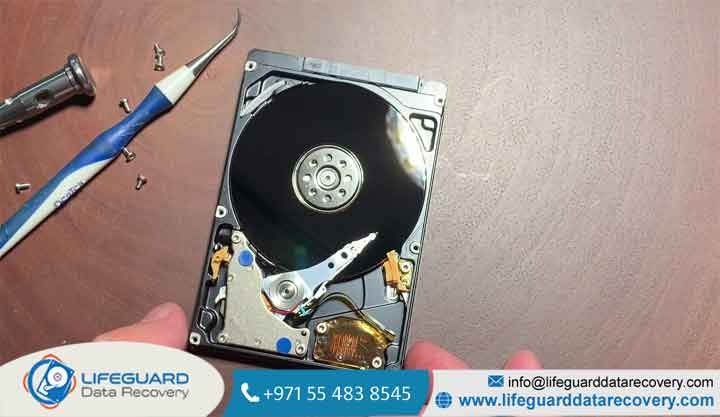
In a professional lab setting, engineers open the hard drive assembly within an ISO-certified, dust-free Cleanroom environment. They can safely replace fried circuit boards, rebuild corrupted firmware chips, or transplant healthy read/write actuator heads from identical “donor” drives.
How Much Does Dead Hard Drive Recovery Cost?
Note: Be cautious of services that charge high upfront fees regardless of the outcome. Reputable labs typically operate on a policy, meaning you only pay the full amount if they successfully extract your critical files during the evaluation process.
Future Proofing: How to Prevent Hard Drive Failure Data Loss
Every mechanical hard drive will eventually fail; it is an engineering certainty. To protect your data from future hardware emergencies, implement these proactive protective habits:
Adopt the 3-2-1 Backup Strategy: Keep at least three (3) separate copies of your critical data. Store them on two (2) different types of media (such as an internal drive and a dedicated external backup disk), and keep one (1) copy entirely offsite in a secure cloud backup environment.
Monitor S.M.A.R.T. Health Status: Use free diagnostic utilities like CrystalDiskInfo (Windows) or DriveDx (macOS) to read your drive’s Self-Monitoring, Analysis, and Reporting Technology (S.M.A.R.T.) telemetry data. If the software flags “Reallocated Sectors Count” or “Current Pending Sector Count” warnings, your drive is actively failing stop using it immediately and back up your data.
Transition to Solid-State Drives (SSDs): Unlike traditional HDDs, solid-state drives contain no delicate moving arms or spinning discs. This makes them significantly more resilient against drop damage, bumps, and mechanical wear.
Frequently Asked Questions
Can a dead hard drive be recovered?
Yes. As long as the internal magnetic platters holding the actual data are not physically scratched or shattered, professional engineers can repair or bypass broken mechanical and electronic parts to safely clone the raw data sectors.
Can you recover data from a hard drive that won’t turn on or spin?
Yes, but this cannot be solved with software. A drive that refuses to spin up typically suffers from a fried printed circuit board (PCB) or a seized spindle motor. Labs recover these by replacing the electronics or transferring the platters into a donor chassis.
Can I swap the broken circuit board (PCB) at home to fix it?
Not on modern hard drives. On older hard drives (built before 2005), you could sometimes buy an identical drive, swap the circuit boards, and it would work.
Modern drives contain unique, drive-specific tuning parameters and firmware written directly onto a ROM chip on the PCB. If you swap the board without moving that specific chip over via micro-soldering, the drive will not boot, and you risk permanently damaging the internal components.
Does the “Freezer Trick” actually work for dead hard drives?
It is an outdated, incredibly risky myth. Years ago, sticking a failing drive in the freezer could cause the metal parts to contract just enough to free up a stuck bearing for a few minutes.
On modern, tightly packed hard drives, putting it in the freezer introduces internal condensation. The moment you take it out and plug it in, water droplets form directly on the storage platters, causing instant, catastrophic media damage when the drive spins up.
How do professionals recover data from a physically smashed or burnt drive?
They use a specialized environment called a Class 100 Cleanroom. This is a dust-free laboratory where technicians can safely open the hard drive casing without airborne particles contaminating the platters.
They physically remove the storage platters, clean them using specialized chemical solutions if necessary, and place them into a custom “donor” drive framework using working mechanical parts to read the raw data sectors.


